
10. Secret Management System
Credential plugins let a credential field obtain its value from an external secret management system. Create a source credential to authenticate to that system, then link a field of a target credential to the source and supply lookup metadata. The source stores connection/authentication settings; metadata belongs to each individual field link and identifies what to retrieve.
Koios Automation Platform 2026.11.8 loads the following 10 external credential types. Secret fields in the source credential are encrypted in the database. A lookup does not remove the need to protect the account used to access the external system. See Credential Types for plugin availability, the opt-out setting and custom-type collisions.
10.1. Configure and link a secret lookup
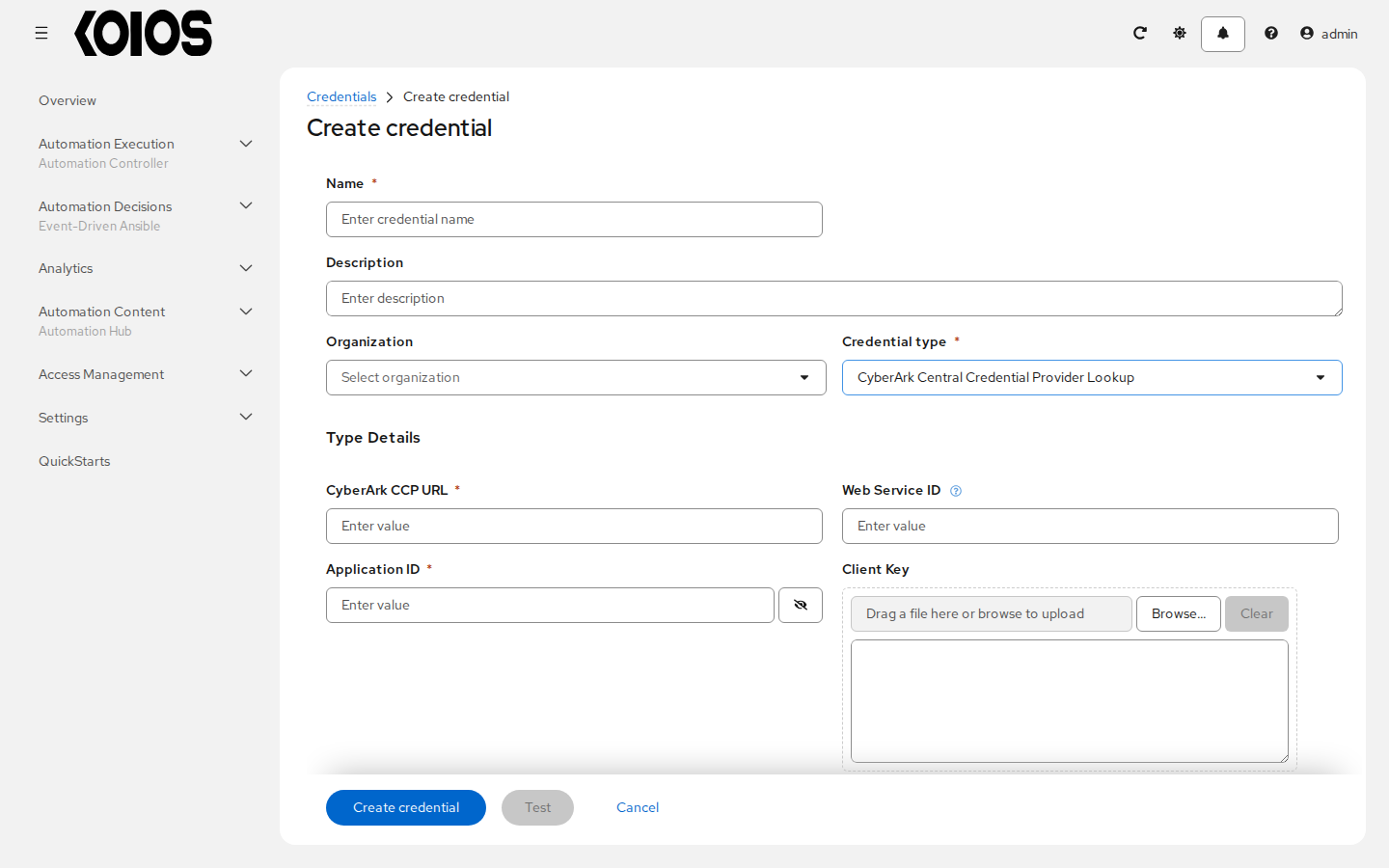
Open Automation Execution > Infrastructure > Credentials and click Create credential. Give the source a Name, select one of the external Credential type values below, enter its connection/authentication fields, and click Create credential.
Open or create the target credential, for example a Machine credential. For an existing target, click Edit credential. An external credential cannot itself use another external lookup for its fields.
Click the key icon beside the target input. Its tooltip is Populate field from an external secret management system. For a saved encrypted text field the key button is disabled until the field is made editable; it is also disabled while Prompt on launch is selected.
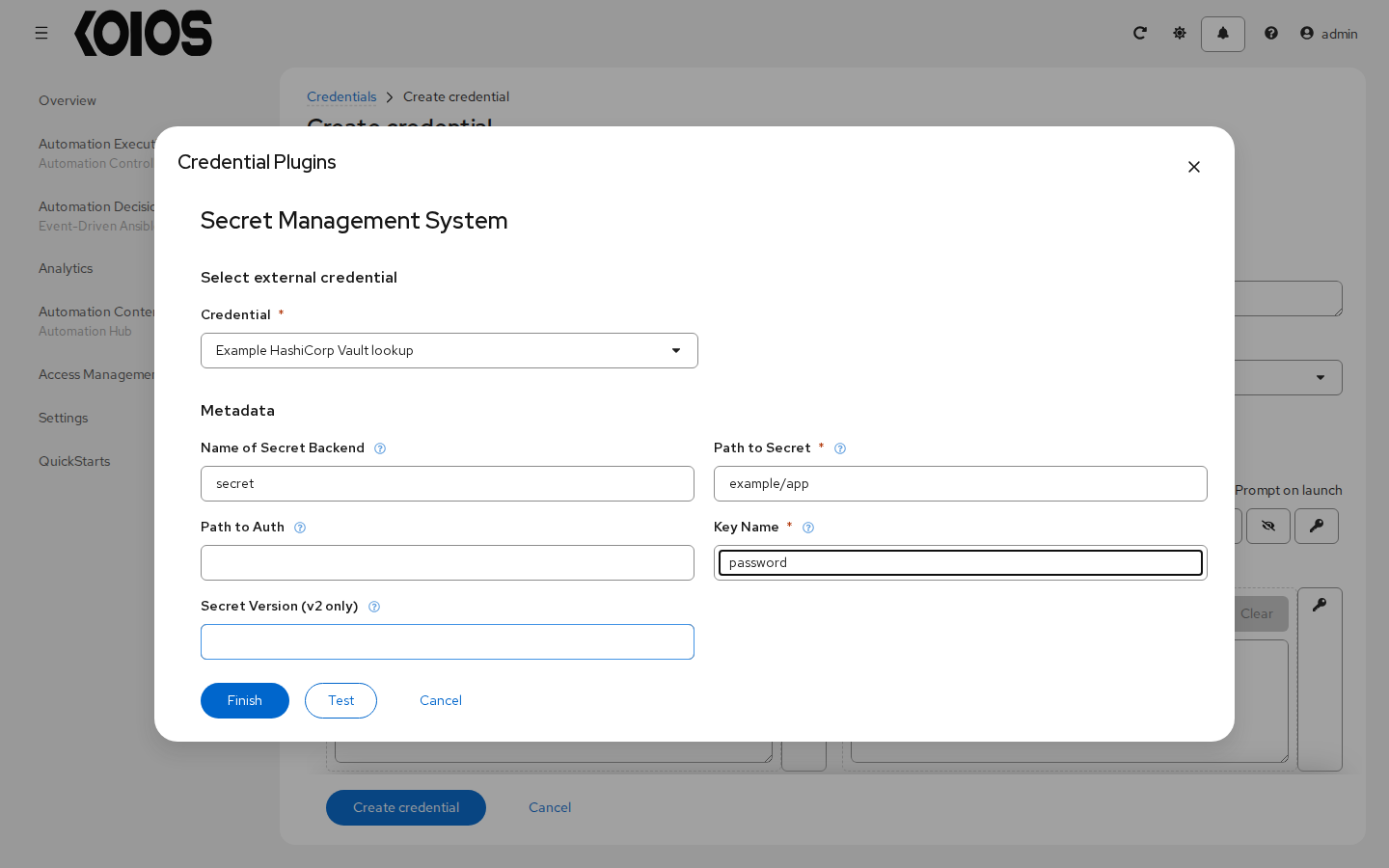
In the Credential Plugins dialog, under Select external credential, choose the source in Credential. Complete the Metadata fields for that particular lookup.
Optionally click Test. Test passed. verifies the lookup, not the target account’s ability to connect to another service. The dialog stays open with the values you entered.
Click Finish to attach the lookup to the target field. Repeat for other fields as needed, then click Create credential or Save credential on the target form to persist the links. Test alone does not save them. The linked field displays a managed-value placeholder and explanatory helper text rather than the retrieved secret.
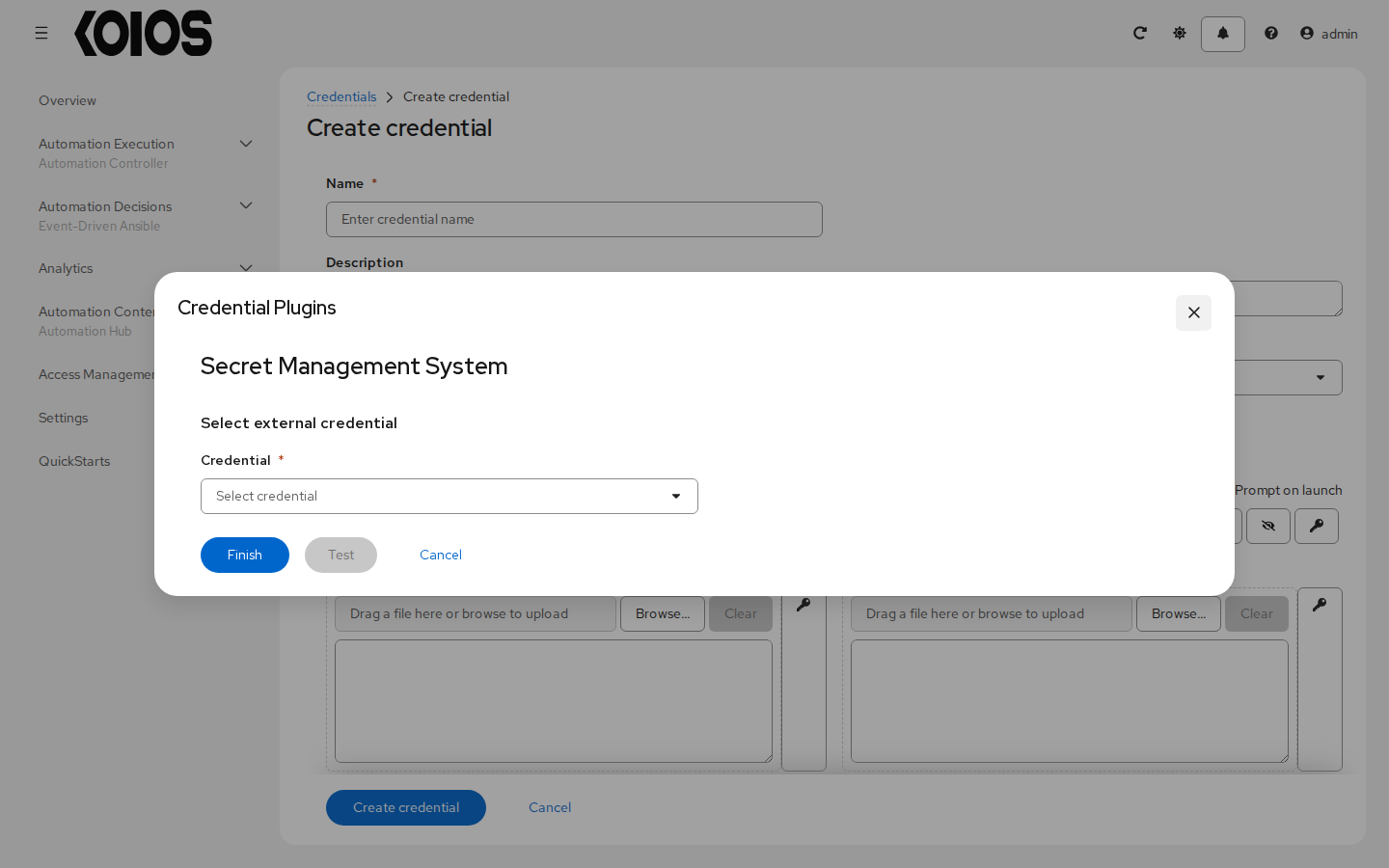
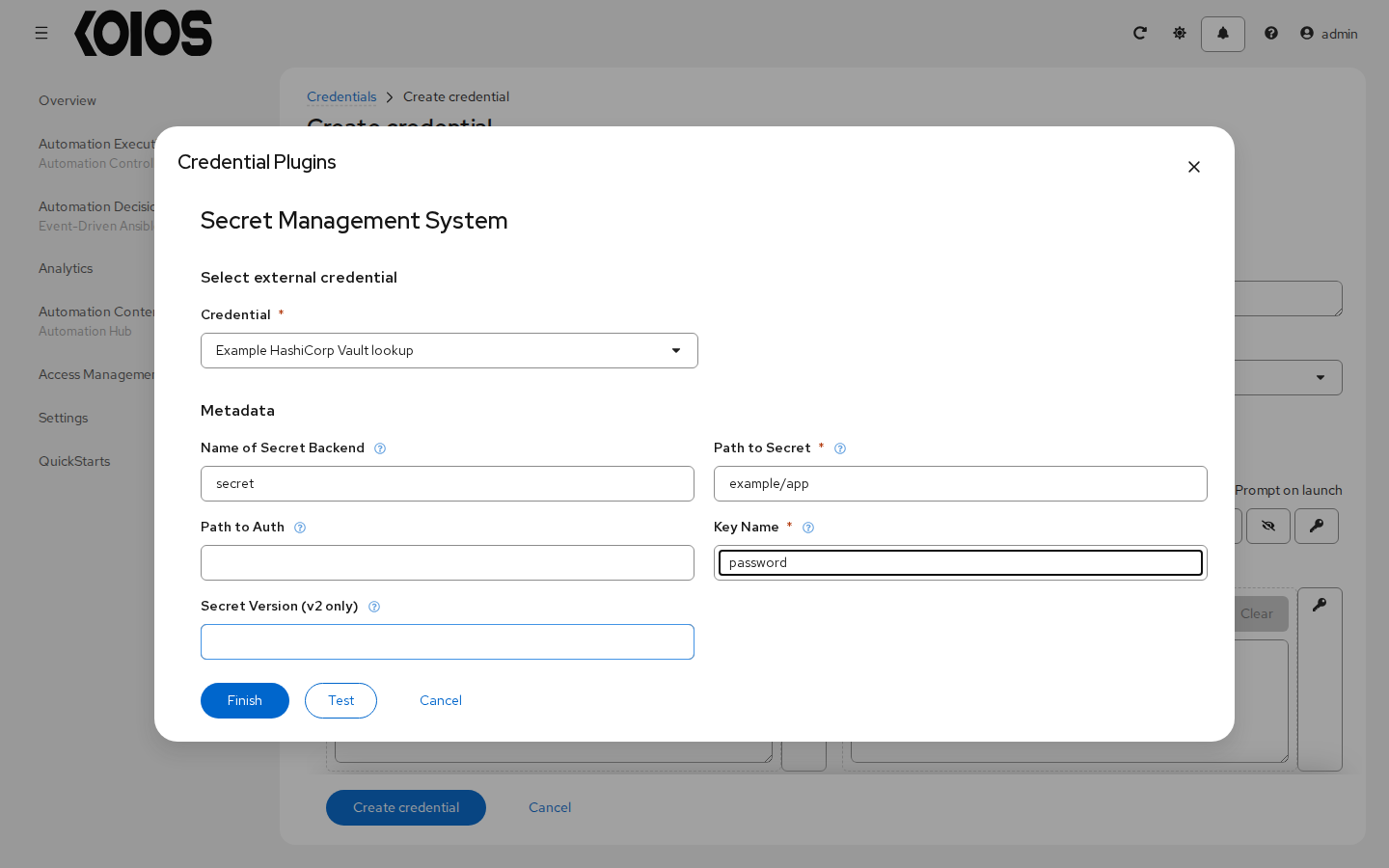
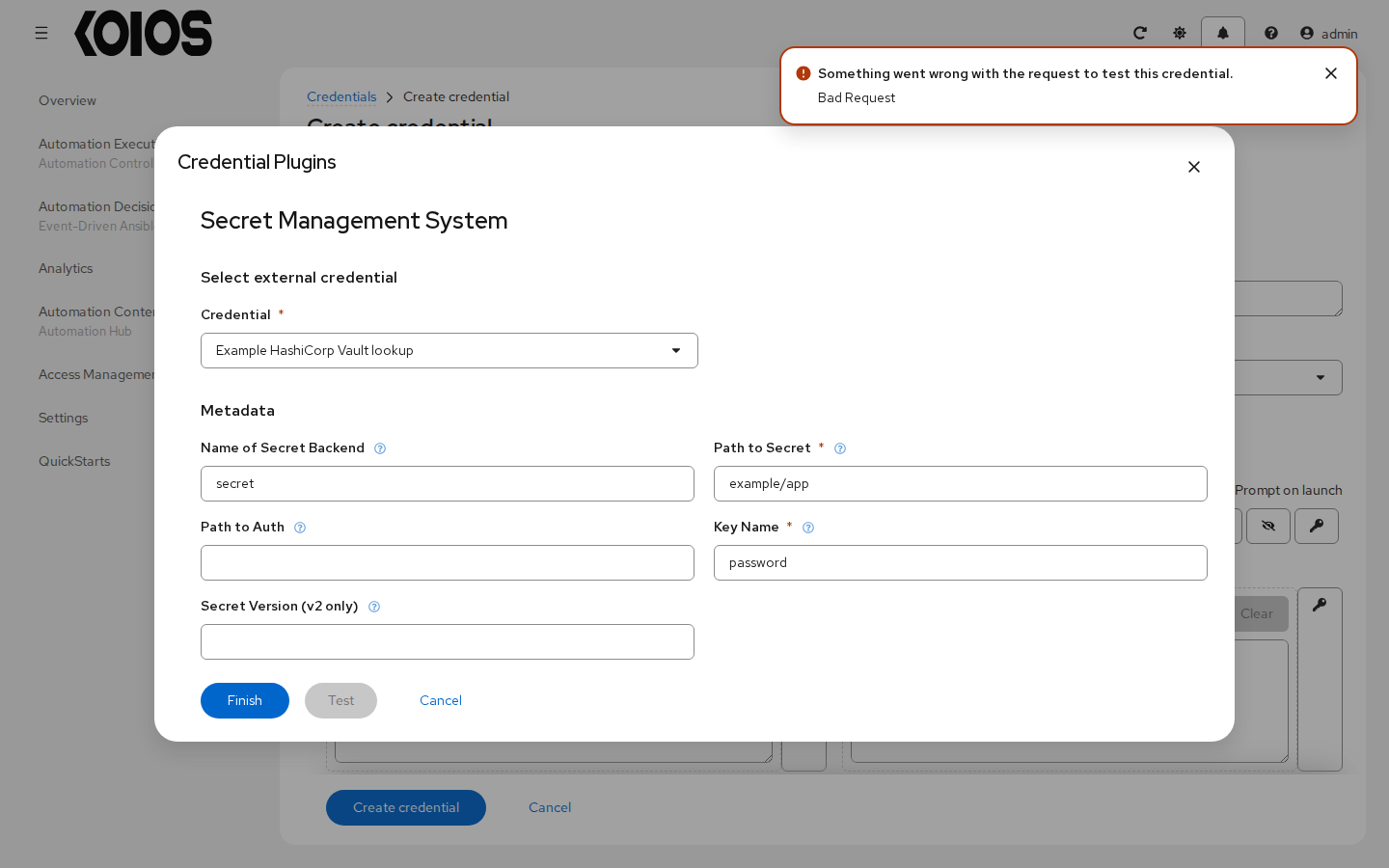
The controller retrieves linked values when preparing automation that uses the target credential. A failure to retrieve a required value can prevent that automation from running. Test network reachability, certificates, source permissions and metadata before relying on a lookup.
In the tables below, Credential fields are entered when creating the source credential; Link metadata is entered in the key dialog on the target. Required reflects the deployed schema. External-system policy can require additional values.
10.2. CyberArk Central Credential Provider Lookup
Use a CyberArk CCP application to retrieve a property identified by the object query. Supply client certificate/key material when the CCP authentication policy requires it. Leave Web Service ID blank to use AIMWebService. An object policy can require Reason even though it is not marked required by the schema.
Credential fields
Field |
Required |
Details |
|---|---|---|
CyberArk CCP URL |
Yes |
Text value. |
Web Service ID |
No |
The CCP Web Service ID. Leave blank to default to AIMWebService. |
Application ID |
Yes |
Stored as an encrypted secret. |
Client Key |
No |
Stored as an encrypted secret. |
Client Certificate |
No |
Stored as an encrypted secret. |
Verify SSL Certificates |
No |
Default: |
Link metadata
Field |
Required |
Details |
|---|---|---|
Object Query |
Yes |
Lookup query for the object. Ex: Safe=TestSafe;Object=testAccountName123 |
Object Query Format |
No |
Choices: |
Object Property |
No |
The property of the object to return. Available properties: Username, Password and Address. |
Reason |
No |
Object request reason. This is only needed if it is required by the object’s policy. |
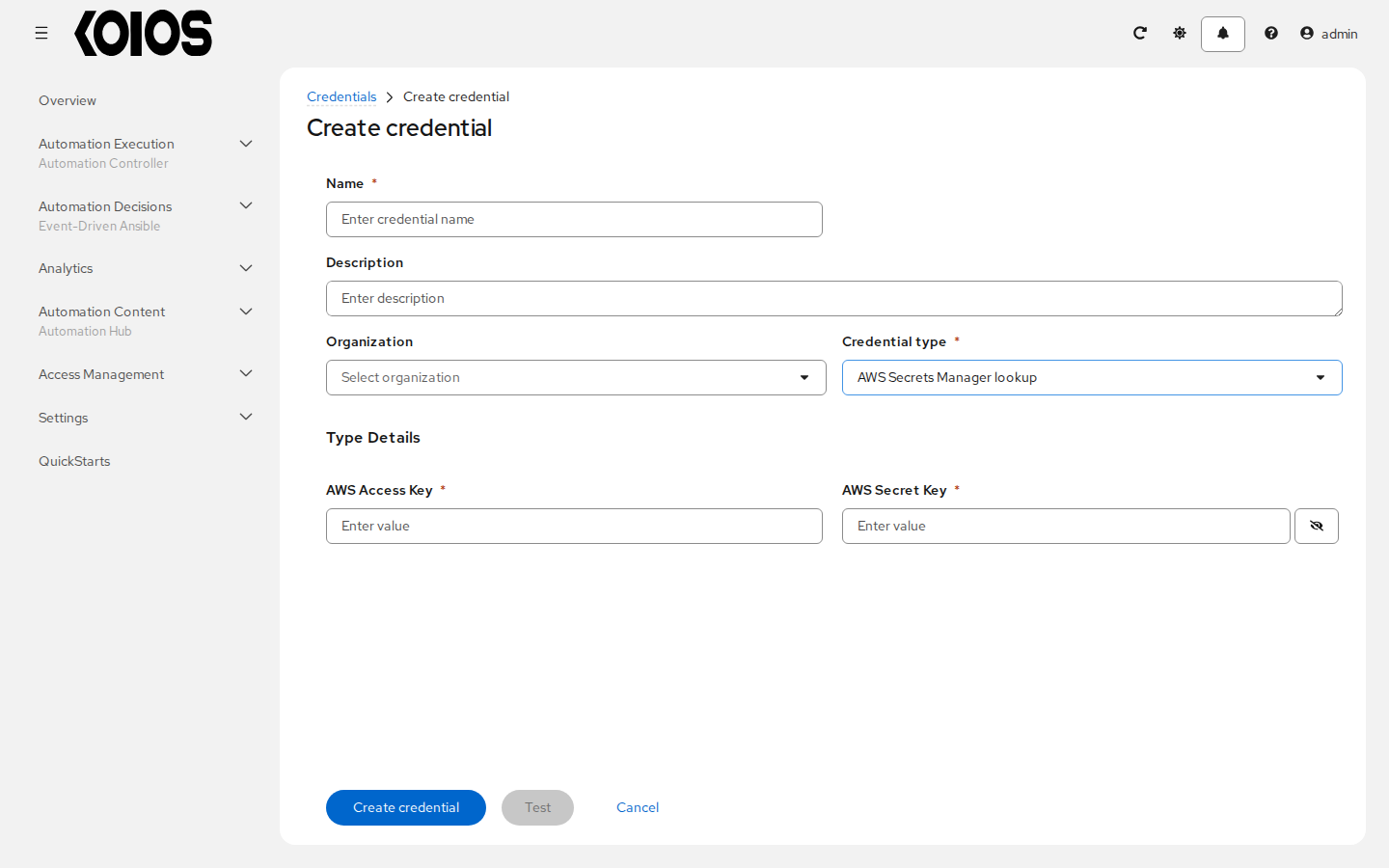
10.3. AWS Secrets Manager lookup
Configure the AWS account access keys on the source credential; select the region and secret name separately for each linked field. This lookup type has no STS token field.
Credential fields
Field |
Required |
Details |
|---|---|---|
AWS Access Key |
Yes |
Text value. |
AWS Secret Key |
Yes |
Stored as an encrypted secret. |
Link metadata
Field |
Required |
Details |
|---|---|---|
AWS Secrets Manager Region |
Yes |
Region which the secrets manager is located |
AWS Secret Name |
Yes |
Text value. |
10.4. Microsoft Azure Key Vault
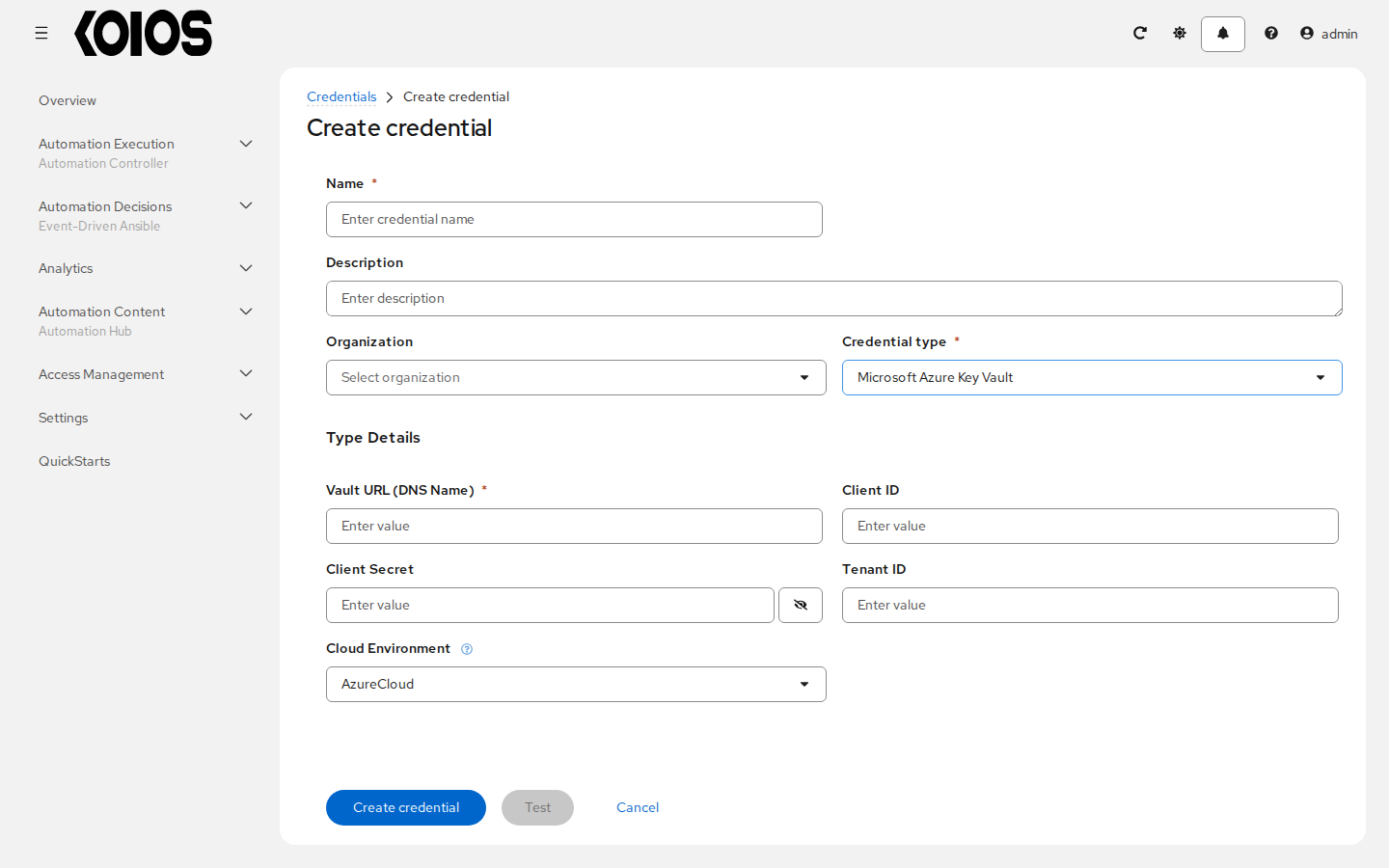
Configure the vault DNS URL, cloud environment and the authentication values needed to access it. The schema requires the vault URL and linked Secret Name, rather than marking every client authentication field required. Leave Secret Version empty to request the latest version.
Credential fields
Field |
Required |
Details |
|---|---|---|
Vault URL (DNS Name) |
Yes |
Text value. |
Client ID |
No |
Text value. |
Client Secret |
No |
Stored as an encrypted secret. |
Tenant ID |
No |
Text value. |
Cloud Environment |
No |
Specify which azure cloud environment to use. Choices: |
Link metadata
Field |
Required |
Details |
|---|---|---|
Secret Name |
Yes |
The name of the secret to look up. |
Secret Version |
No |
Used to specify a specific secret version (if left empty, the latest version will be used). |
10.5. Centrify Vault Credential Provider Lookup
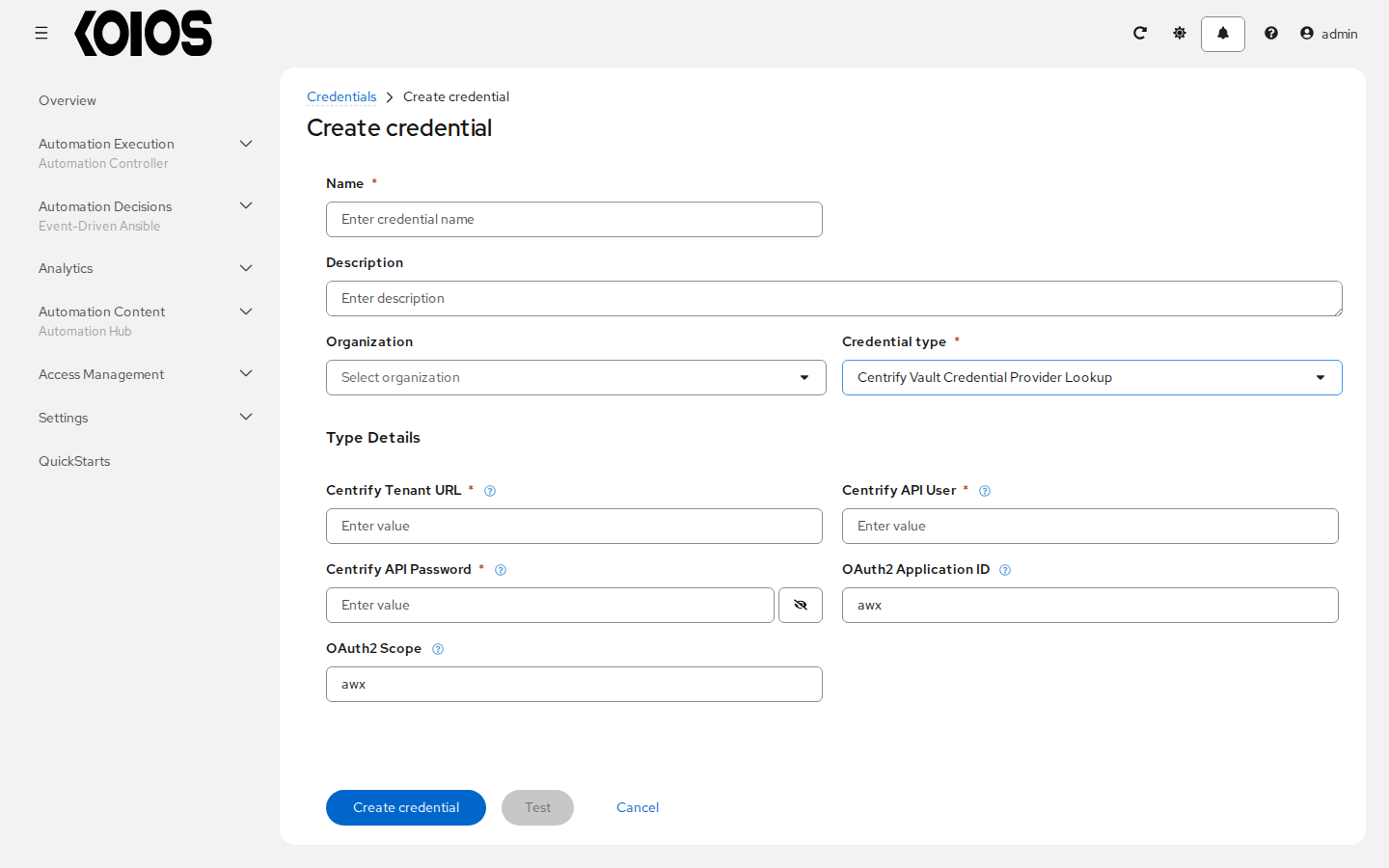
Provide the tenant and API user credentials, then identify the enrolled account and system in the link metadata. OAuth2 Application ID and OAuth2 Scope default to awx.
Credential fields
Field |
Required |
Details |
|---|---|---|
Centrify Tenant URL |
Yes |
Centrify Tenant URL |
Centrify API User |
Yes |
Centrify API User, having necessary permissions as mentioned in support doc |
Centrify API Password |
Yes |
Password of Centrify API User with necessary permissions Stored as an encrypted secret. |
OAuth2 Application ID |
No |
Application ID of the configured OAuth2 Client (defaults to ‘awx’) Default: |
OAuth2 Scope |
No |
Scope of the configured OAuth2 Client (defaults to ‘awx’) Default: |
Link metadata
Field |
Required |
Details |
|---|---|---|
Account Name |
Yes |
Local system account or Domain account name enrolled in Centrify Vault. eg. (root or DOMAIN/Administrator) |
System Name |
Yes |
Machine Name enrolled with in Centrify Portal |
10.6. CyberArk Conjur Secrets Manager Lookup
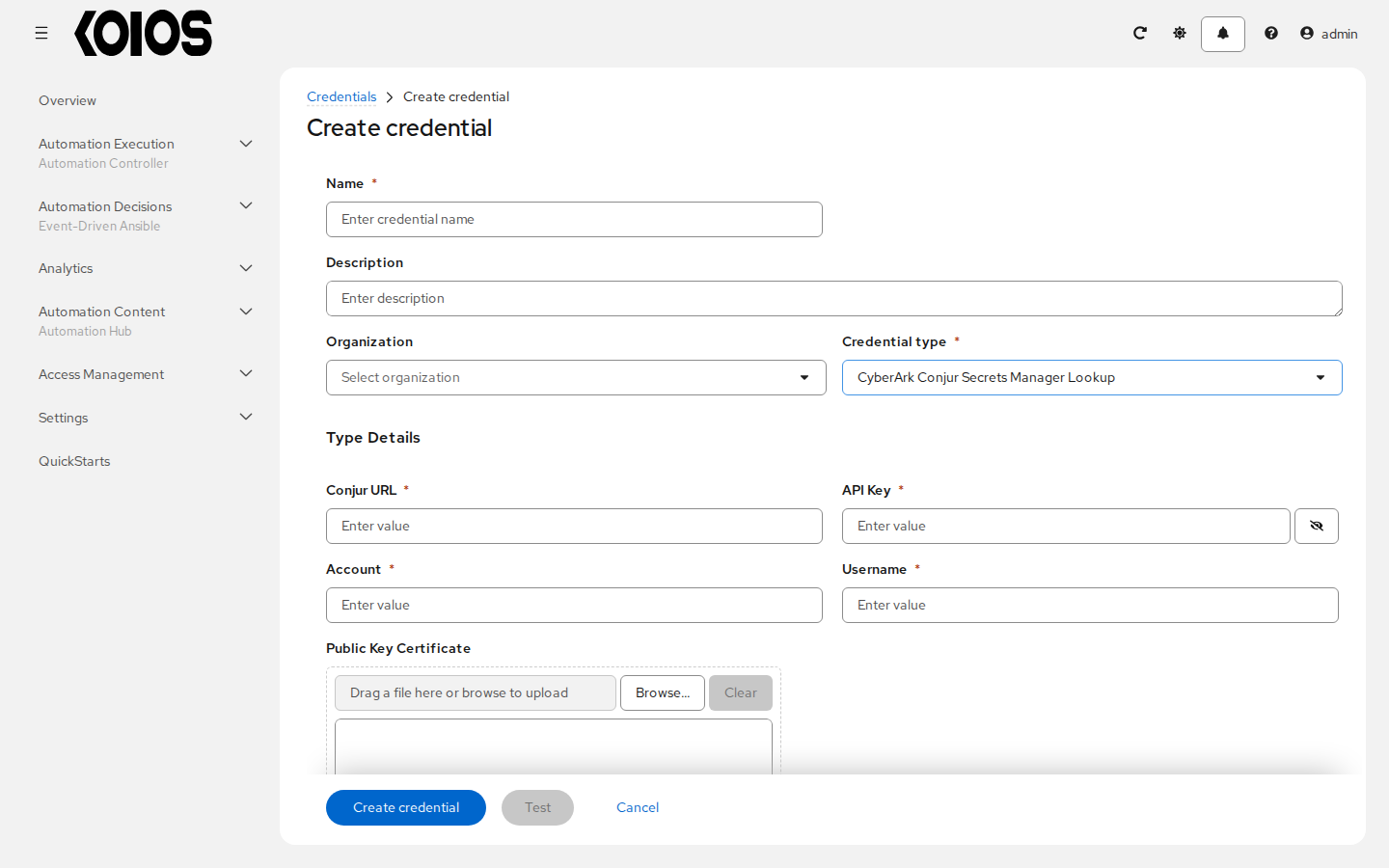
Configure the Conjur URL, API key, account and username. Set the secret identifier in the link metadata; leaving Secret Version empty requests the latest version. The metadata fields are not marked required by this schema, but the lookup still needs an identifier for the secret to retrieve.
Credential fields
Field |
Required |
Details |
|---|---|---|
Conjur URL |
Yes |
Text value. |
API Key |
Yes |
Stored as an encrypted secret. |
Account |
Yes |
Text value. |
Username |
Yes |
Text value. |
Public Key Certificate |
No |
Text value. |
Link metadata
Field |
Required |
Details |
|---|---|---|
Secret Identifier |
No |
The identifier for the secret e.g., /some/identifier |
Secret Version |
No |
Used to specify a specific secret version (if left empty, the latest version will be used). |
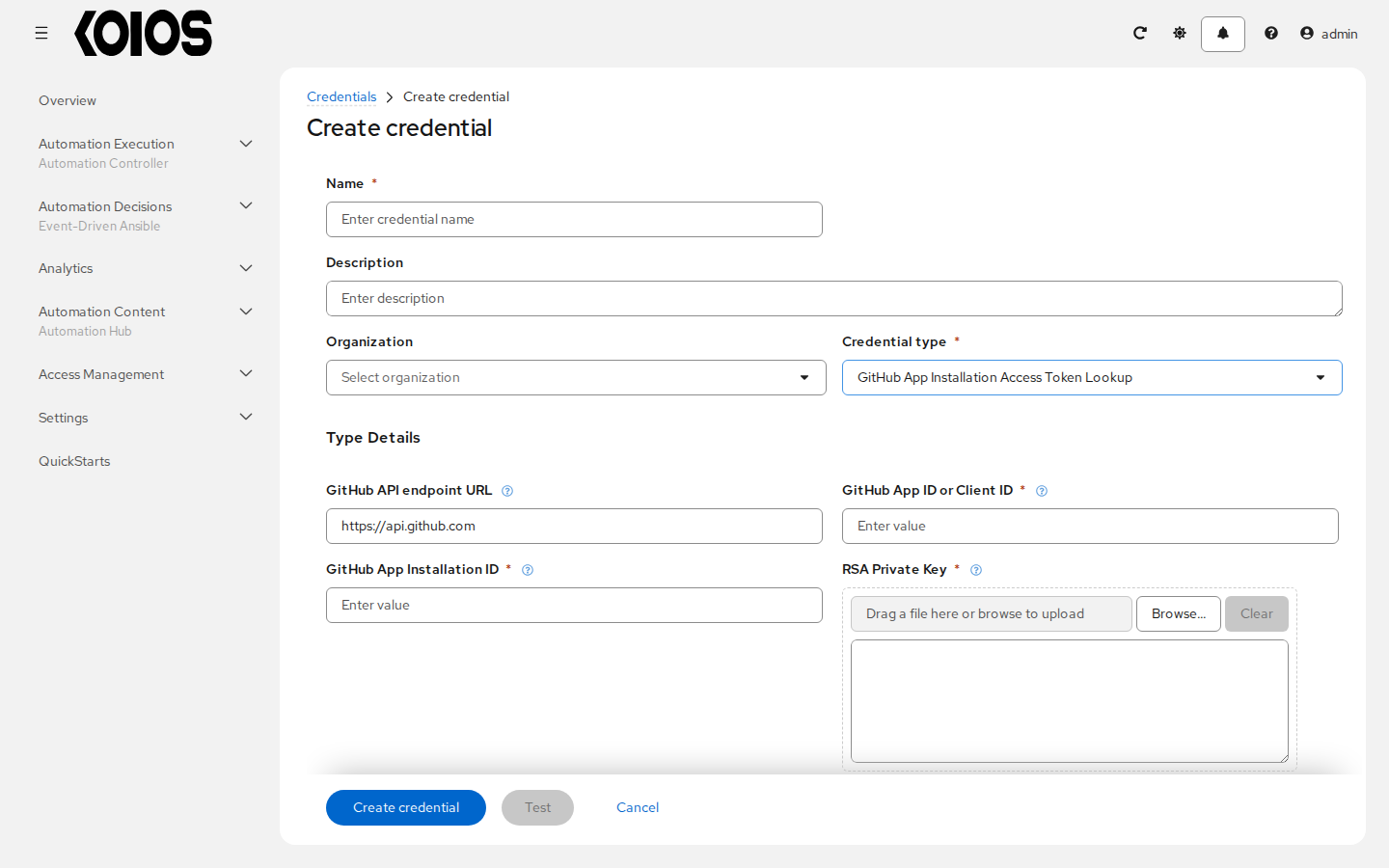
10.7. GitHub App Installation Access Token Lookup
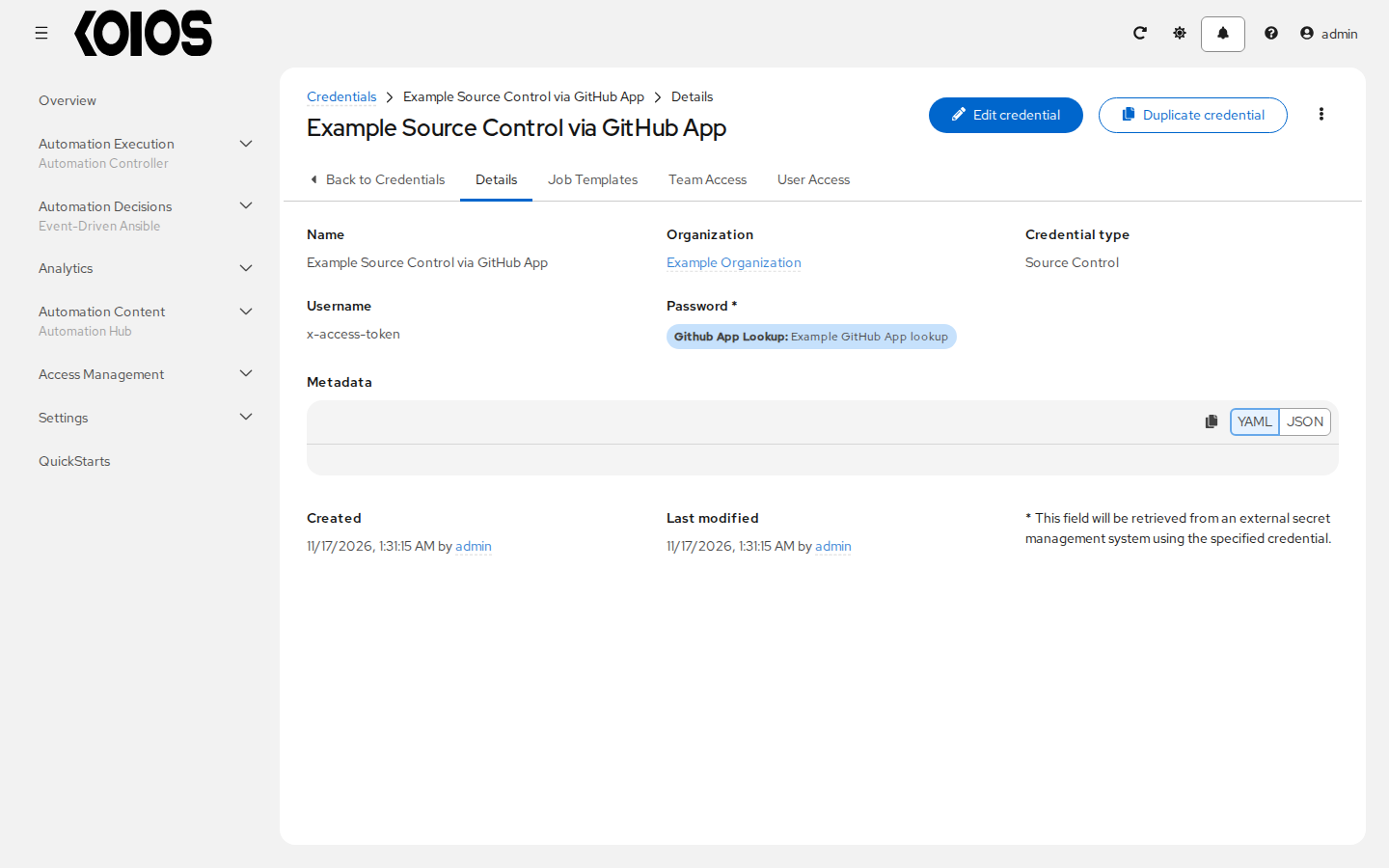
Create and install a GitHub App with the permissions needed by the destination use case. Supply its app/client ID, installation ID and PEM RSA private key. The plugin retrieves an installation access token. Its sole metadata field is Description (Optional); it does not select the installation or permissions. For repository checkout, link the returned token to the Password field of a Source Control credential and provide the appropriate GitHub App username for that checkout.
Credential fields
Field |
Required |
Details |
|---|---|---|
GitHub API endpoint URL |
No |
Specify the GitHub API URL here. In the case of an Enterprise: https://gh.your.org/api/v3 (self-hosted) or https://api.SUBDOMAIN.ghe.com (cloud) Default: |
GitHub App ID or Client ID |
Yes |
The GitHub App ID or Client ID created by the GitHub Admin. Example App ID: 1121547, Client ID: Iv23likIfIXeZTb5GCAA found on https://github.com/settings/apps/ required for creating a JWT token for authentication. |
GitHub App Installation ID |
Yes |
The Installation ID from the GitHub App installation generated by the GitHub Admin. Example: 59980338 extracted from the installation link https://github.com/settings/installations/59980338 required for creating a limited GitHub app token. |
RSA Private Key |
Yes |
Paste the contents of the PEM file that the GitHub Admin provided to you with the app and installation IDs. Stored as an encrypted secret. |
Link metadata
Field |
Required |
Details |
|---|---|---|
Description (Optional) |
No |
To be removed after UI is updated |
10.8. HashiCorp Vault Secret Lookup
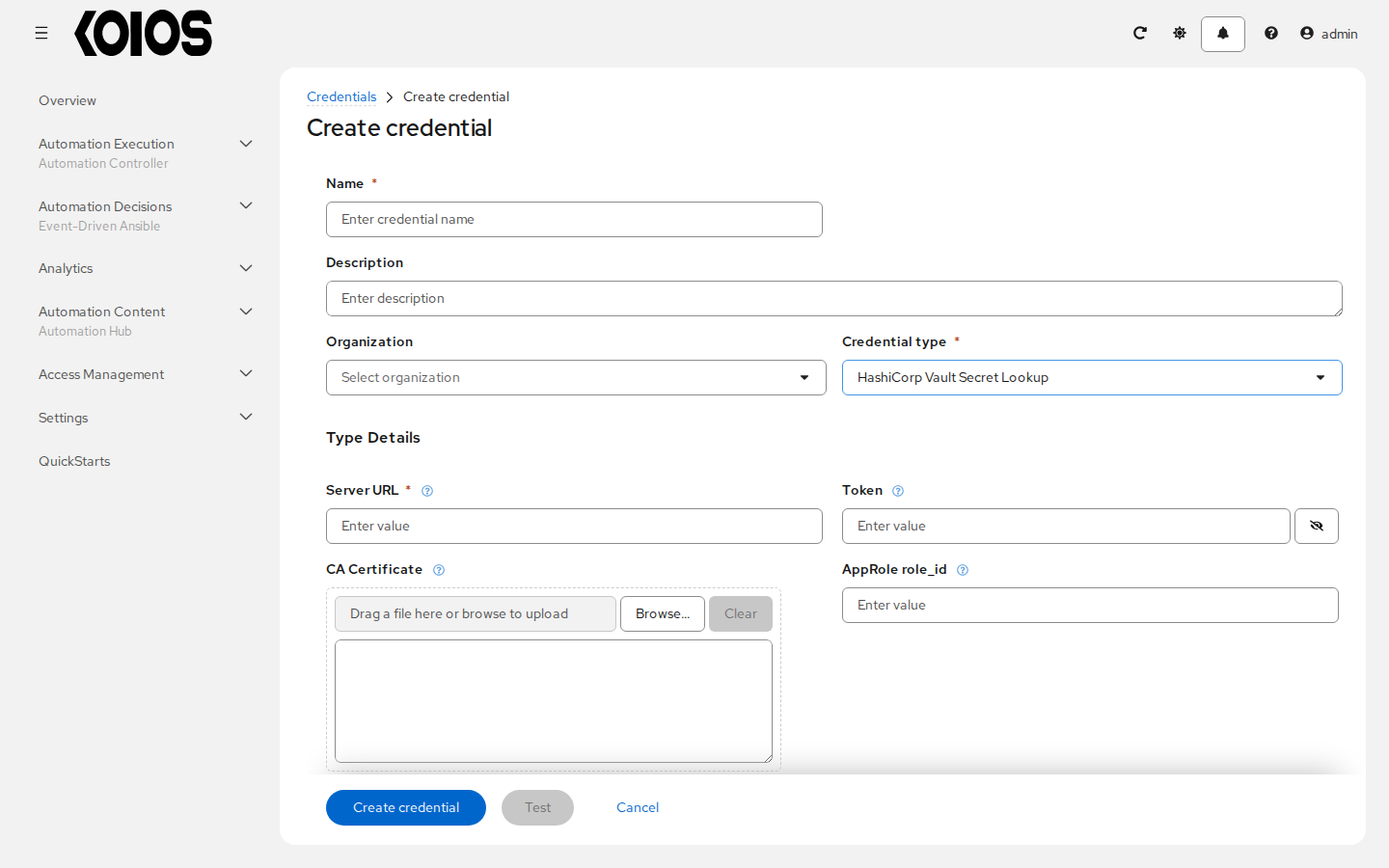
Choose the authentication values appropriate to the Vault configuration, such as Token, AppRole credentials, a client certificate/key, or Username and Password. A listed authentication field is not a guarantee that the server permits that method. Set API Version to v1 or v2 to match the KV engine. The source credential’s Path to Auth is the default authentication mount; the linked field’s Path to Auth can override it. For KV v2, use Secret Version (v2 only) to select a version or leave it empty for the latest. The namespace option applies to Vault Enterprise.
Credential fields
Field |
Required |
Details |
|---|---|---|
Server URL |
Yes |
The URL to the HashiCorp Vault |
Token |
No |
The access token used to authenticate to the Vault server Stored as an encrypted secret. |
CA Certificate |
No |
The CA certificate used to verify the SSL certificate of the Vault server |
AppRole role_id |
No |
The Role ID for AppRole Authentication |
AppRole secret_id |
No |
The Secret ID for AppRole Authentication Stored as an encrypted secret. |
Client Certificate |
No |
The PEM-encoded client certificate used for TLS client authentication. This should include the certificate and any intermediate certificates. |
Client Certificate Key |
No |
The certificate private key used for TLS client authentication. Stored as an encrypted secret. |
TLS Authentication Role |
No |
The role configured in Hashicorp Vault for TLS client authentication. If not provided, Hashicorp Vault may assign roles based on the certificate used. |
Namespace name (Vault Enterprise only) |
No |
Name of the namespace to use when authenticate and retrieve secrets |
Kubernetes role |
No |
The Role for Kubernetes Authentication. This is the named role, configured in Vault server, for AWX pod auth policies. see https://www.vaultproject.io/docs/auth/kubernetes#configuration |
Username |
No |
Username for user authentication. |
Password |
No |
Password for user authentication. Stored as an encrypted secret. |
Path to Auth |
No |
The Authentication path to use if one isn’t provided in the metadata when linking to an input field. Defaults to ‘approle’ Default: |
API Version |
Yes |
API v1 is for static key/value lookups. API v2 is for versioned key/value lookups. Choices: |
Link metadata
Field |
Required |
Details |
|---|---|---|
Name of Secret Backend |
No |
The name of the kv secret backend (if left empty, the first segment of the secret path will be used). |
Path to Secret |
Yes |
The path to the secret stored in the secret backend e.g, /some/secret/. It is recommended that you use the secret backend field to identify the storage backend and to use this field for locating a specific secret within that store. However, if you prefer to fully identify both the secret backend and one of its secrets using only this field, join their locations into a single path without any additional separators, e.g, /location/of/backend/some/secret. |
Path to Auth |
No |
The path where the Authentication method is mounted e.g, approle |
Key Name |
Yes |
The name of the key to look up in the secret. |
Secret Version (v2 only) |
No |
Used to specify a specific secret version (if left empty, the latest version will be used). |
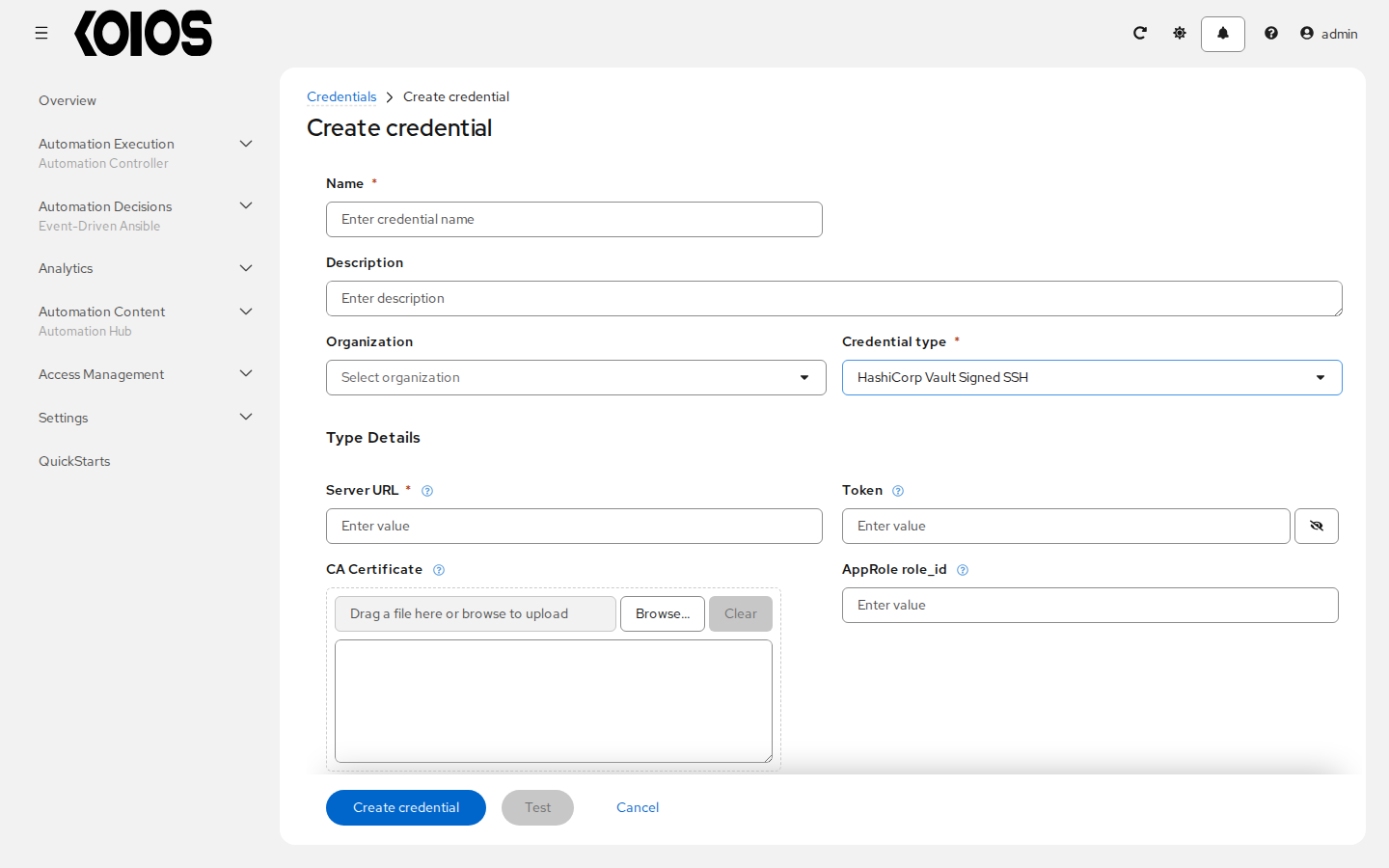
10.9. HashiCorp Vault Signed SSH
This lookup returns a signed SSH certificate, not the private SSH key. Link it to Signed SSH Certificate on a Machine credential, keep the corresponding SSH Private Key on that Machine credential, and provide its unsigned public key in Unsigned Public Key. Select the signing mount in Path to Secret and the signing role in Role Name. The target SSH server must trust the signing authority and permit the certificate’s principals. Authentication fields and the two Path to Auth settings work as described for HashiCorp Vault Secret Lookup.
Credential fields
Field |
Required |
Details |
|---|---|---|
Server URL |
Yes |
The URL to the HashiCorp Vault |
Token |
No |
The access token used to authenticate to the Vault server Stored as an encrypted secret. |
CA Certificate |
No |
The CA certificate used to verify the SSL certificate of the Vault server |
AppRole role_id |
No |
The Role ID for AppRole Authentication |
AppRole secret_id |
No |
The Secret ID for AppRole Authentication Stored as an encrypted secret. |
Client Certificate |
No |
The PEM-encoded client certificate used for TLS client authentication. This should include the certificate and any intermediate certificates. |
Client Certificate Key |
No |
The certificate private key used for TLS client authentication. Stored as an encrypted secret. |
TLS Authentication Role |
No |
The role configured in Hashicorp Vault for TLS client authentication. If not provided, Hashicorp Vault may assign roles based on the certificate used. |
Namespace name (Vault Enterprise only) |
No |
Name of the namespace to use when authenticate and retrieve secrets |
Kubernetes role |
No |
The Role for Kubernetes Authentication. This is the named role, configured in Vault server, for AWX pod auth policies. see https://www.vaultproject.io/docs/auth/kubernetes#configuration |
Username |
No |
Username for user authentication. |
Password |
No |
Password for user authentication. Stored as an encrypted secret. |
Path to Auth |
No |
The Authentication path to use if one isn’t provided in the metadata when linking to an input field. Defaults to ‘approle’ Default: |
Link metadata
Field |
Required |
Details |
|---|---|---|
Unsigned Public Key |
Yes |
Text value. |
Path to Secret |
Yes |
The path to the secret stored in the secret backend e.g, /some/secret/. It is recommended that you use the secret backend field to identify the storage backend and to use this field for locating a specific secret within that store. However, if you prefer to fully identify both the secret backend and one of its secrets using only this field, join their locations into a single path without any additional separators, e.g, /location/of/backend/some/secret. |
Path to Auth |
No |
The path where the Authentication method is mounted e.g, approle |
Role Name |
Yes |
The name of the role used to sign. |
Valid Principals |
No |
Valid principals (either usernames or hostnames) that the certificate should be signed for. |
10.10. Thycotic DevOps Secrets Vault
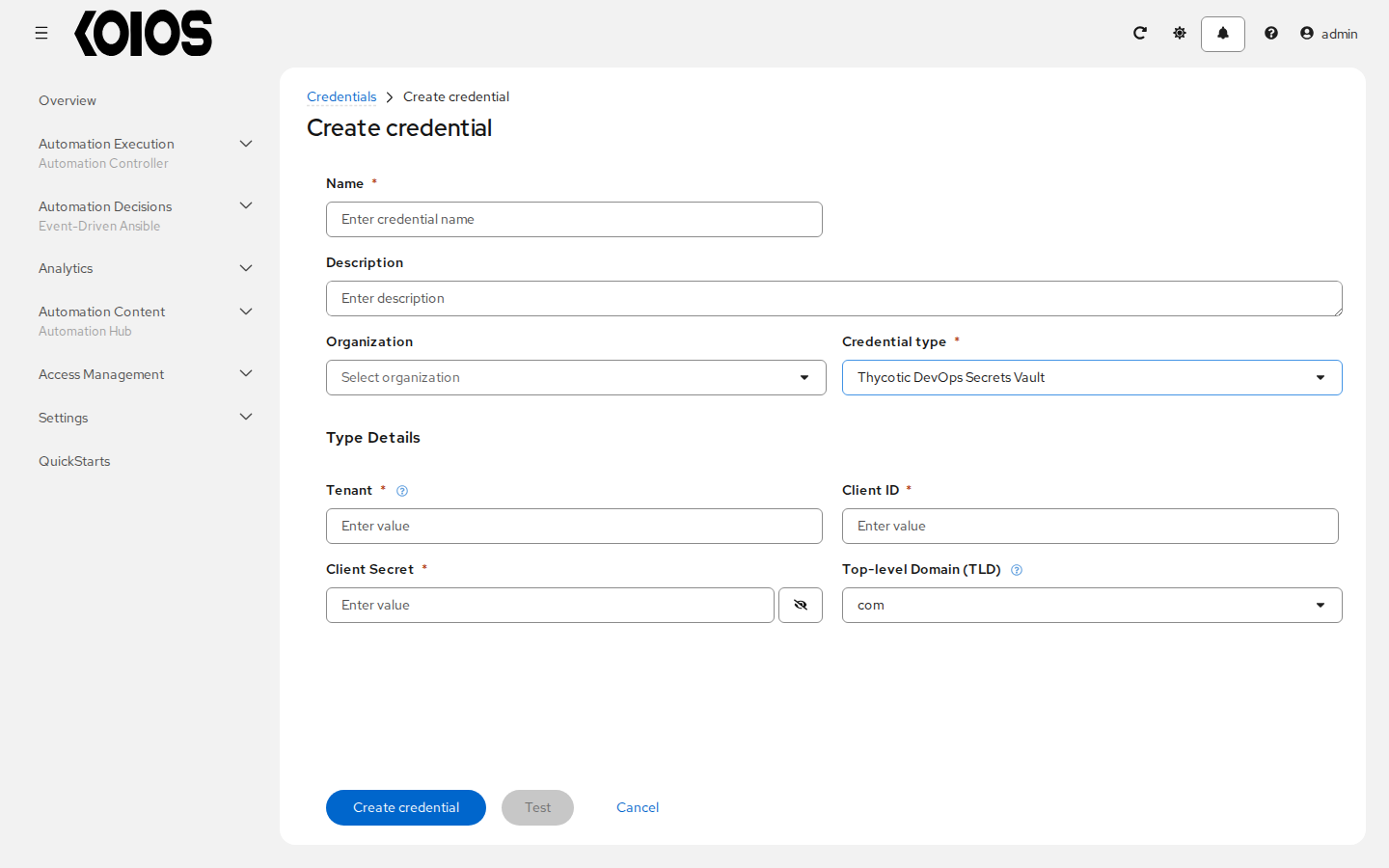
Configure the tenant, top-level domain and client credentials. Each linked field selects a secret path and the field to extract. Use Decode Base64 only when the stored value is base64-encoded and the destination needs its decoded form.
Credential fields
Field |
Required |
Details |
|---|---|---|
Tenant |
Yes |
The tenant e.g. “ex” when the URL is https://ex.secretsvaultcloud.com |
Top-level Domain (TLD) |
No |
The TLD of the tenant e.g. “com” when the URL is https://ex.secretsvaultcloud.com Choices: |
Client ID |
Yes |
Text value. |
Client Secret |
Yes |
Stored as an encrypted secret. |
Link metadata
Field |
Required |
Details |
|---|---|---|
Secret Path |
Yes |
The secret path e.g. /test/secret1 |
Secret Field |
Yes |
The field to extract from the secret |
Should the secret be base64 decoded? |
Yes |
Specify whether the secret should be base64 decoded, typically used for storing files, such as SSH keys Choices: |
10.11. Thycotic Secret Server
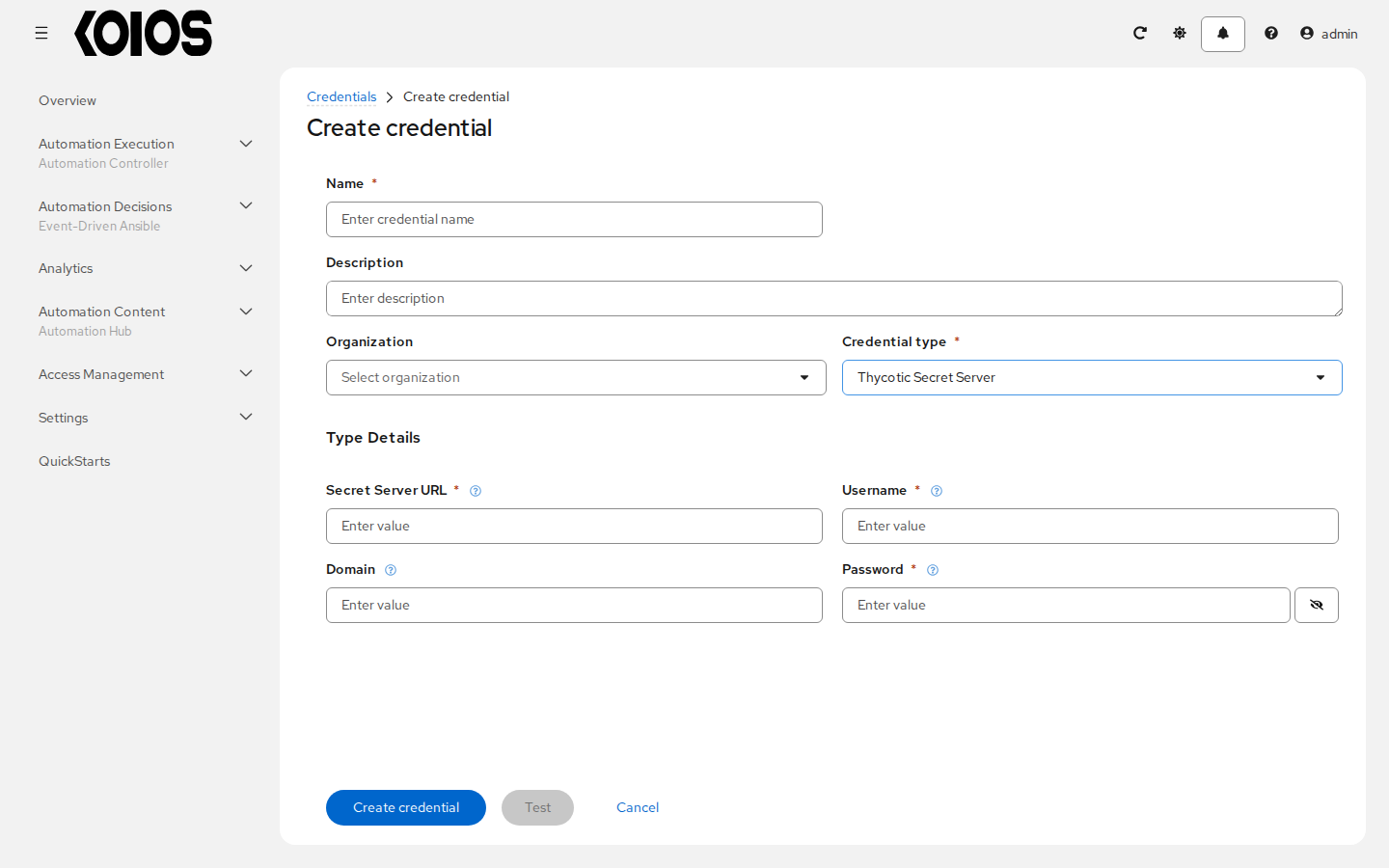
Configure the Secret Server URL and account credentials. Each linked field specifies the integer secret ID and the field to extract. Domain is available for accounts that require it.
Credential fields
Field |
Required |
Details |
|---|---|---|
Secret Server URL |
Yes |
The Base URL of Secret Server e.g. https://myserver/SecretServer or https://mytenant.secretservercloud.com |
Username |
Yes |
The (Application) user username |
Domain |
No |
The (Application) user domain |
Password |
Yes |
The corresponding password Stored as an encrypted secret. |
Link metadata
Field |
Required |
Details |
|---|---|---|
Secret ID |
Yes |
The integer ID of the secret |
Secret Field |
Yes |
The field to extract from the secret |
10.12. OIDC workload identity
The HashiCorp Vault OIDC lookup variants are not available in this release because
FEATURE_OIDC_WORKLOAD_IDENTITY_ENABLED is disabled. They are not among the 10 types above.
Use the non-OIDC Vault types with an authentication method configured on the Vault server;
do not select an OIDC type or expect an automatically generated workload identity token.
Developers can consult the development docs for credential plugins for the plugin interface.