28. Schedules
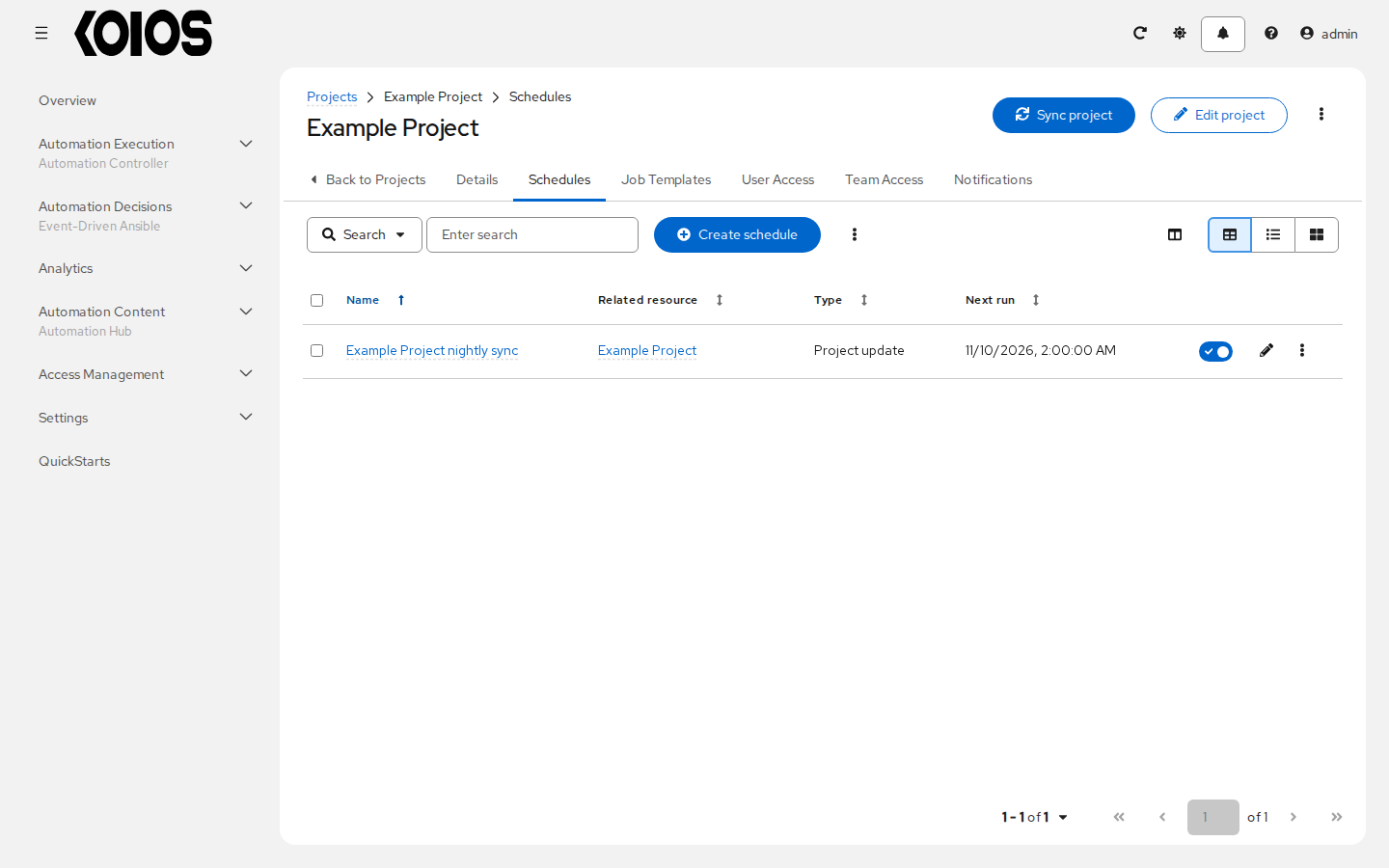
Open Automation Execution > Schedules to view the schedules you can access. Use the toolbar to filter the list and the sortable column headers to change its order. Click a schedule name to open its details. Use the switch in the list to enable or disable a schedule, and its edit action ( ) to change it.
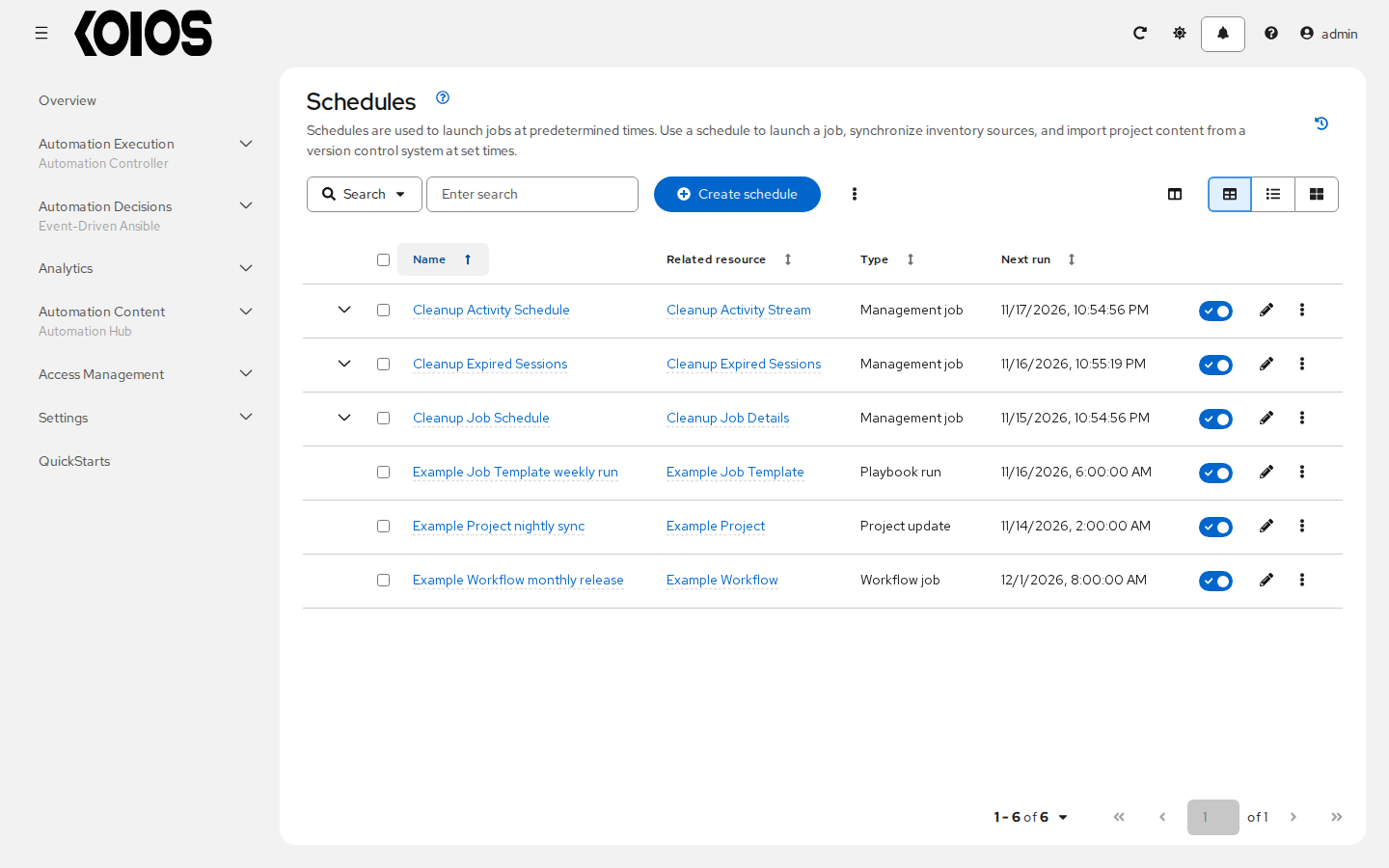
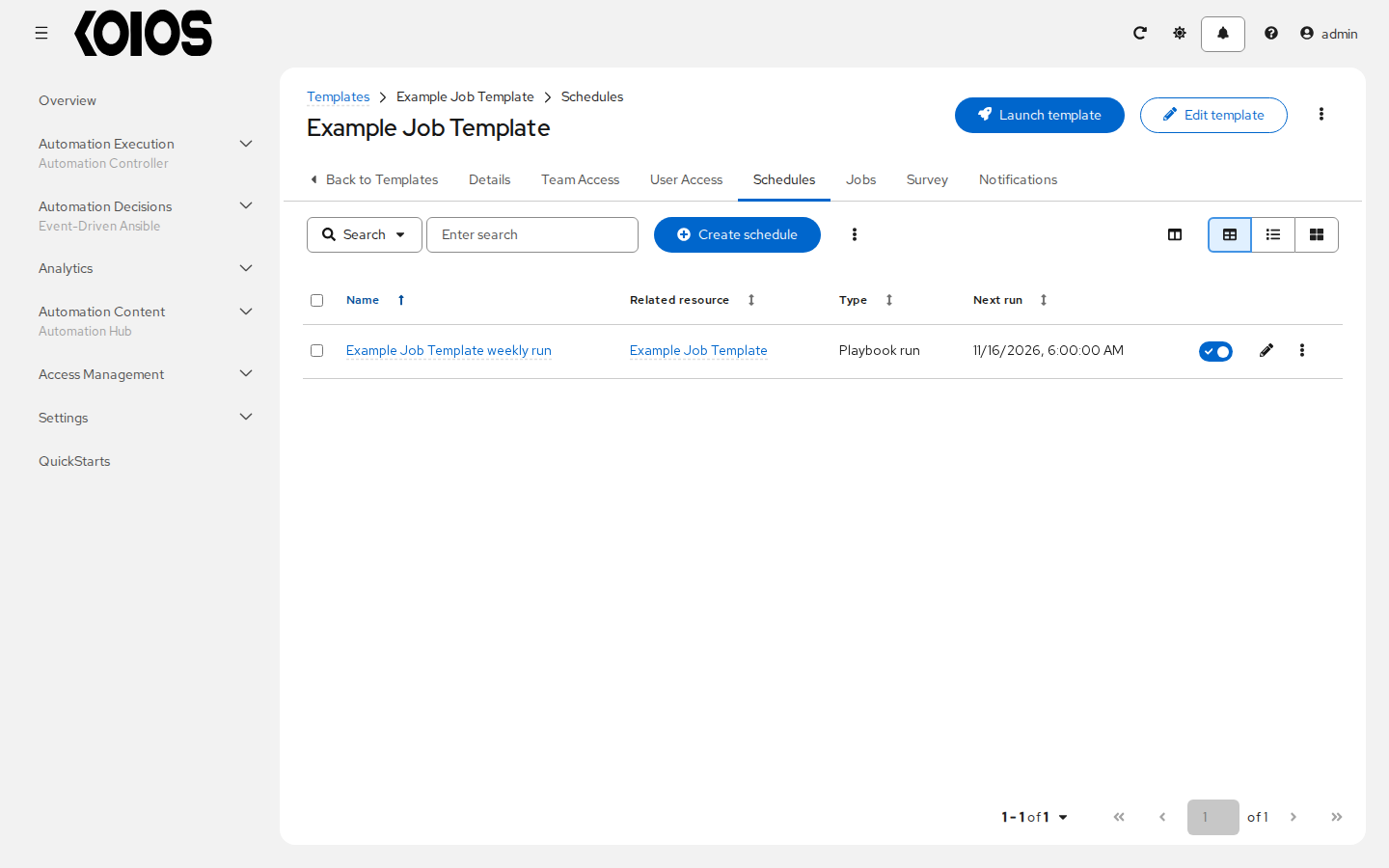
Templates, projects and inventory sources also have a Schedules tab that lists schedules for that resource.
28.1. Create a schedule
Open Automation Execution > Schedules and click Create schedule. In Details, select Resource type and the resource to schedule. For an inventory source, select its inventory first. Alternatively, open a template, project or inventory source and click Create schedule on its Schedules tab; the resource is already selected.
Enter Schedule name, an optional Description, Start date/time and Time zone. The start time is interpreted in the selected zone.
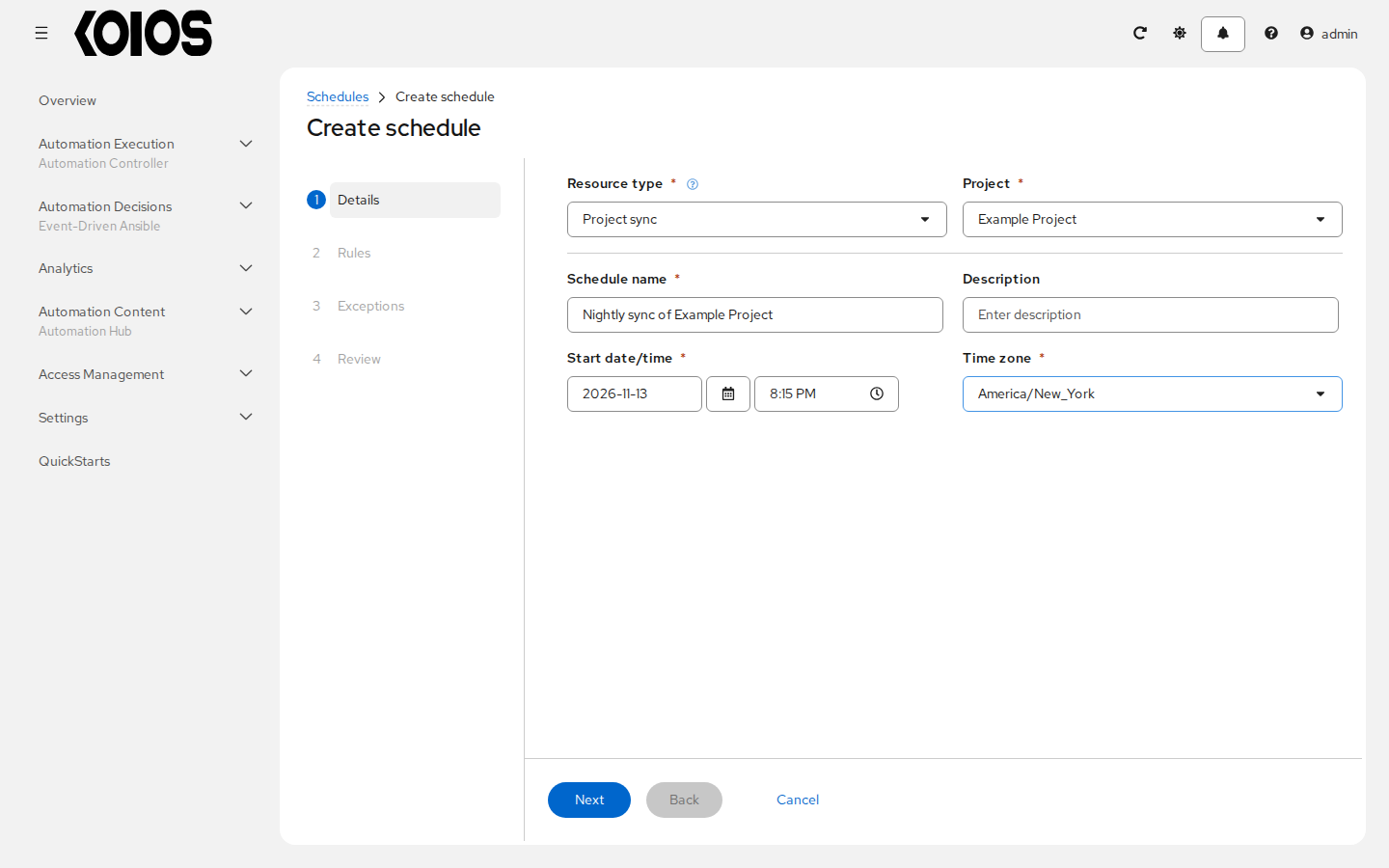
Click Next to continue through the wizard. Complete Prompts and Survey when offered by the selected template. In Rules, define at least one rule for when the schedule runs. Use Exceptions to exclude occurrences if needed.
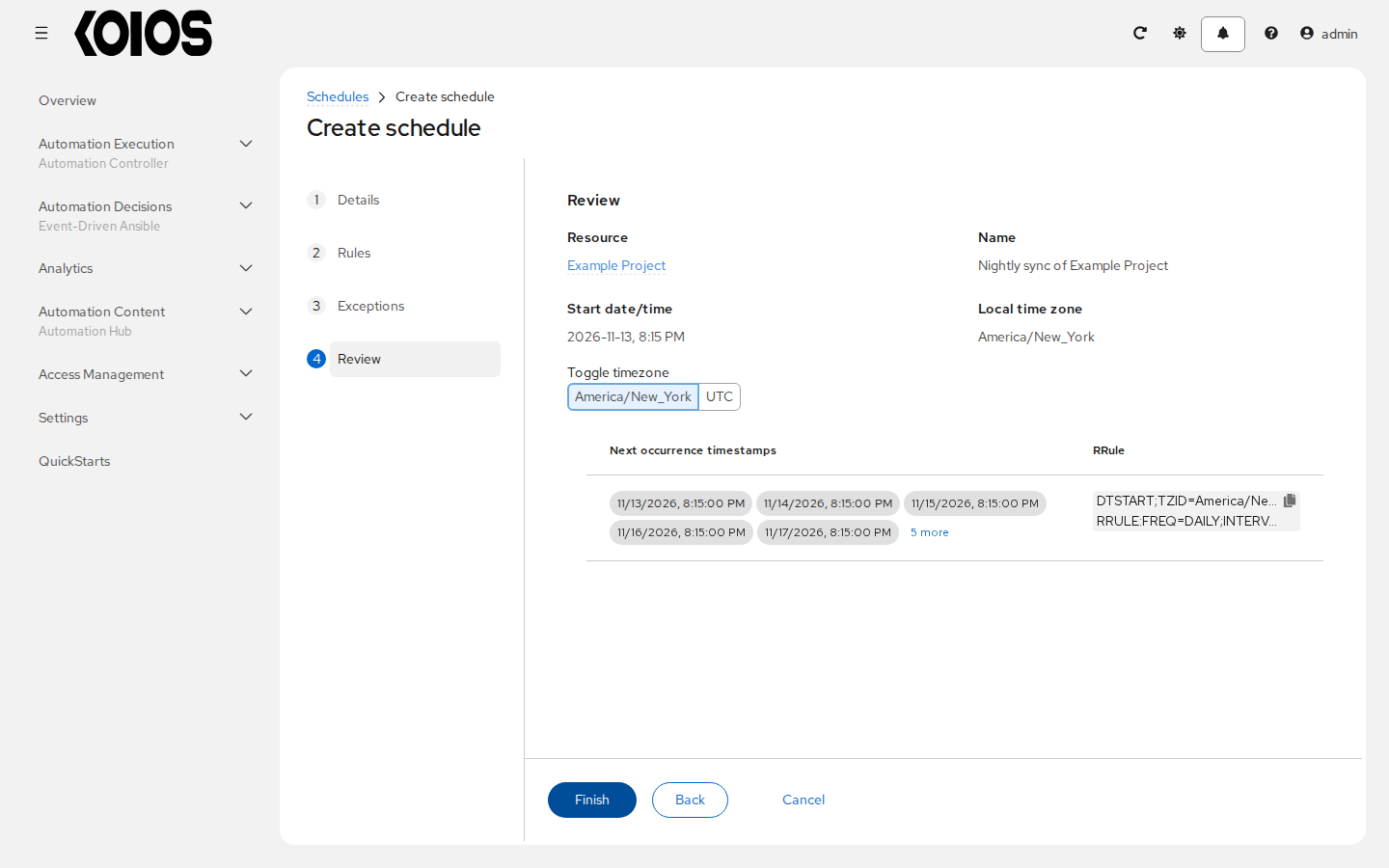
In Review, check the settings and preview the upcoming occurrences. Use the time zone toggle to compare local and UTC times, then click Finish.
28.2. Time zones and daylight saving time
A recurrence retains its named time zone (TZID); it is not converted into a permanently fixed UTC recurrence when saved. For example, a daily run at 05:00 in America/New_York can stay at 05:00 local time while its UTC time changes from 10:00 to 09:00 when daylight saving time begins. Select UTC if you require a fixed UTC time instead.
During the spring transition, some local times do not exist. When computing the next run, the scheduler checks whether the next occurrence exists in its time zone and advances to the following occurrence if it does not. During the autumn transition, a local clock time can occur twice. Do not assume this creates two job runs: review the occurrence preview and its UTC offsets for your chosen zone and recurrence. Choose a time outside the transition window, or UTC, if that ambiguity is unsuitable for your workload.
After creation, inspect the schedule details and return to the list to enable or disable it as needed.