
6. Organizations
An Organization provides a shared scope for platform membership and service resources. Teams belong to an organization, while users can participate in more than one organization or team. Access to an inventory, project or credential is determined by role assignments and their scope, not by placing every resource below a team or user in a single ownership tree.
Relationship |
Meaning |
|---|---|
Organization and teams |
A team belongs to one organization and provides a way to assign access to a group of users. |
Users and membership |
Users are platform identities. Organization and team memberships associate them with those resources; a user is not owned by one team. |
Controller resources |
Projects and inventories have an organization scope. Credentials can have an organization or be unassociated with one; a team does not own them merely because it has a role assignment. |
Resource references |
A job template references a project, inventory and credentials. Those references define what a job uses and do not grant users access by themselves. |
Effective access |
Users receive direct grants and grants inherited through team membership. Permissions on an organization can cover related resources according to the role definition and service rules. |
See Role-Based Access Control for role definitions, assignments and scope.
Organizations, teams and users belong to the platform: they are managed in Access Management and shared by automation controller, Event-Driven Ansible and automation hub. Open Access Management > Organizations to see them; the list can be searched by name.
Note
On a new controller with preload data enabled and no existing organizations, the platform receives a Default organization. Existing or customized installations can differ; see Quick Start.
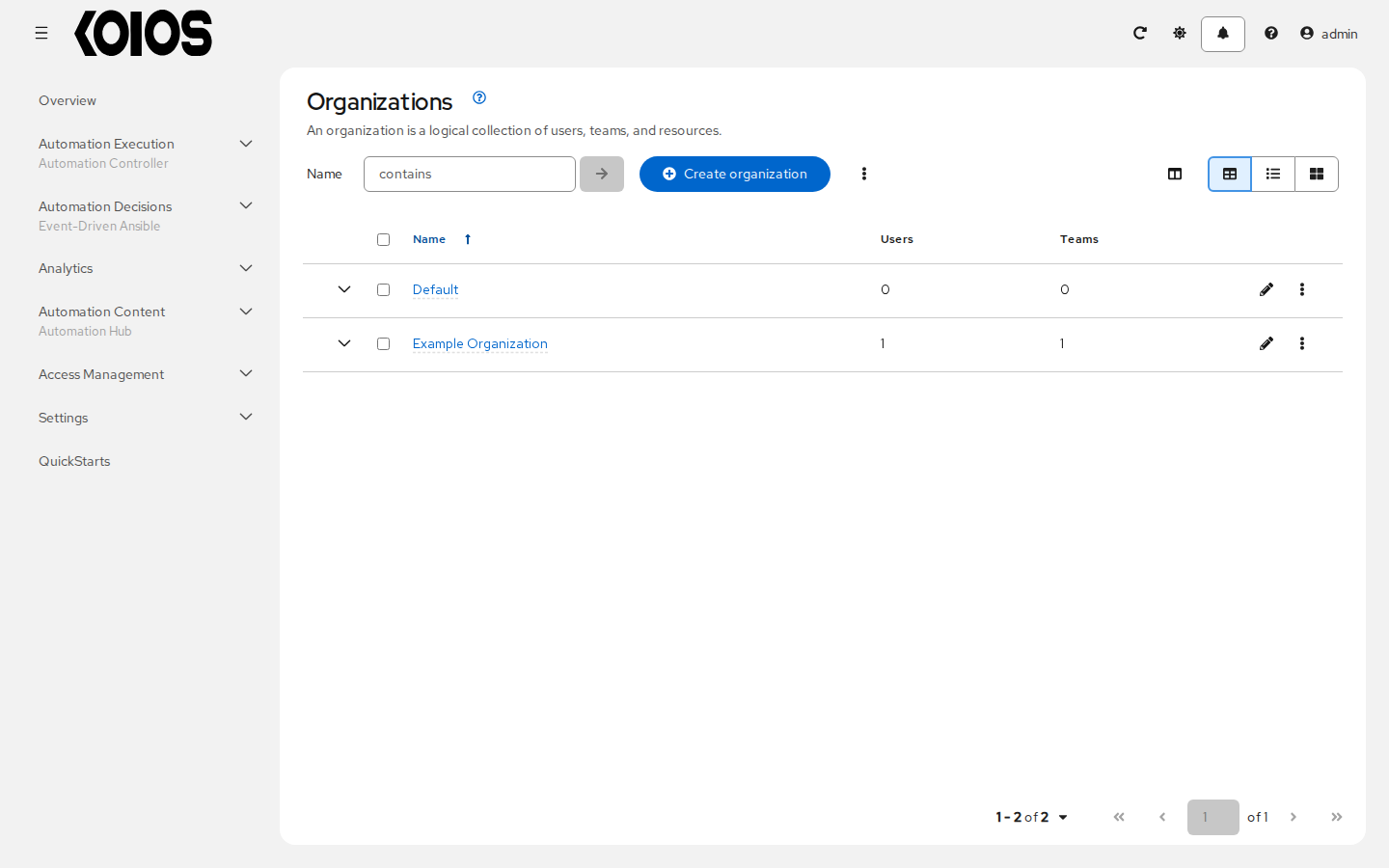
6.1. Creating a New Organization
Click Create organization. The form has two steps, Organization details and Review.
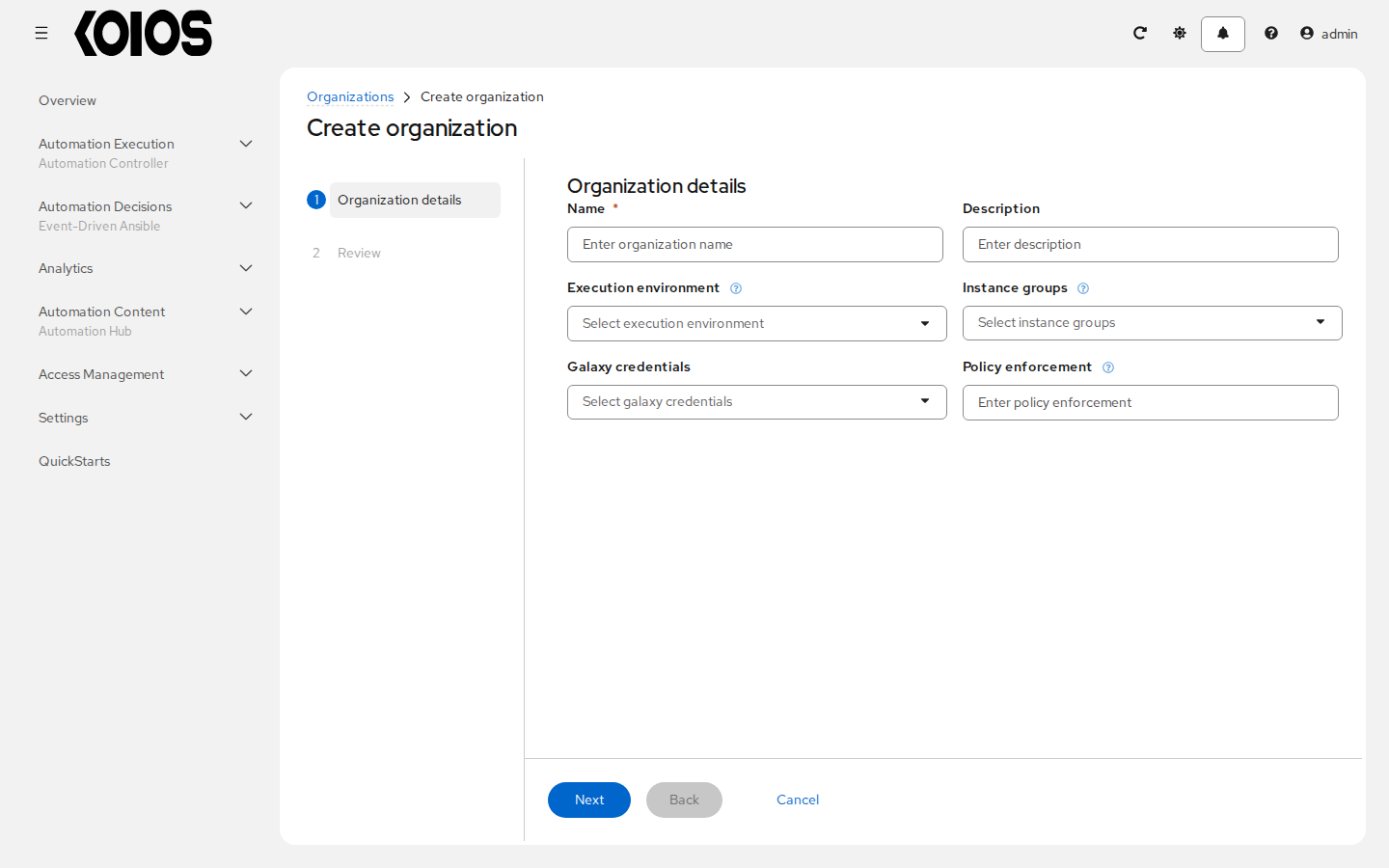
Enter the attributes of the organization:
Name (required) and Description.
Execution environment: the default execution environment of the organization. See Execution Environments.
Instance groups on which to run the jobs of this organization.
Galaxy credentials to install collections and roles for its projects, in order.
Policy enforcement: a policy to evaluate before its jobs run, when policy enforcement is configured.
Click Next. When you select more than one instance group or Galaxy credential, the wizard adds a step to order them. Review the values and click Finish.
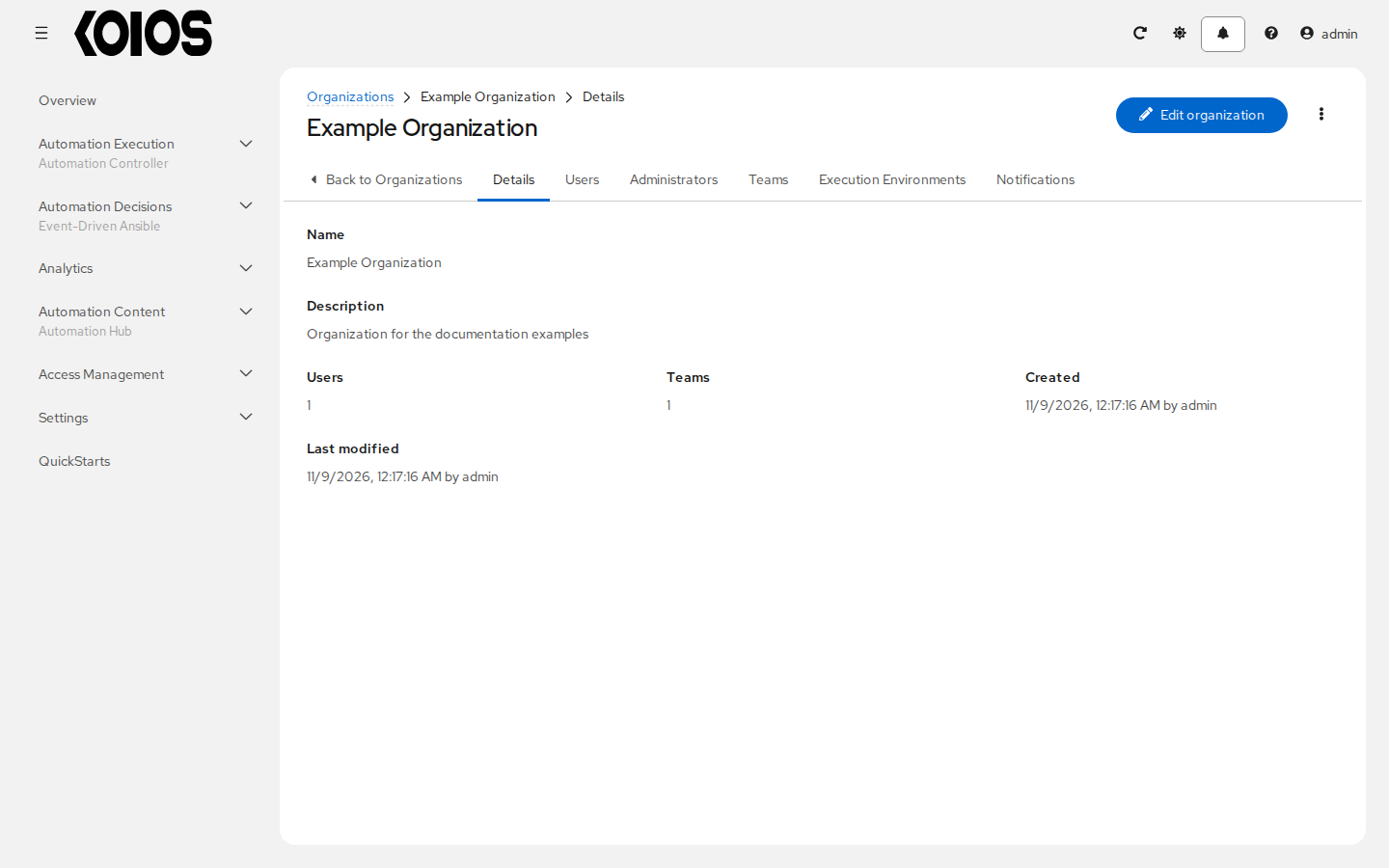
The organization page opens on its Details tab. Edit organization changes it; the menu next to it deletes it.
Note
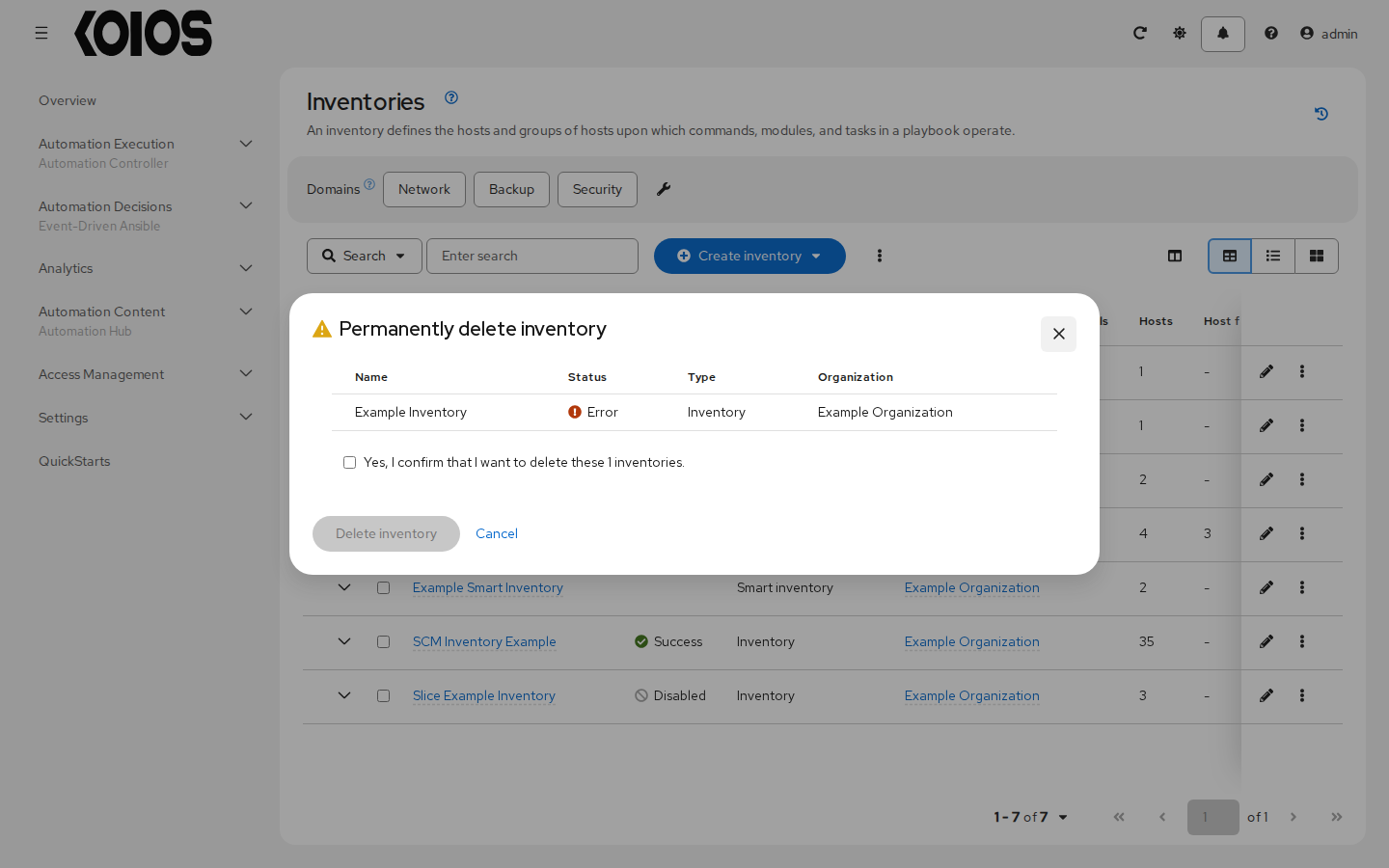
When you delete items, a confirmation window lists them and asks you to confirm the deletion; it does not list the other items that use them. Templates that used a deleted item keep existing without it: a job template without project cannot be launched until you select another one; without inventory, it needs another one, selected in the template or, if the template prompts for it, at launch; a deleted credential is simply removed from the templates, which run without it. Below is an example of the confirmation window:
6.2. Users, administrators and teams
The Users tab lists the users of the organization with the organization roles assigned to them directly; Administrators lists its administrators and Teams its teams. A user who belongs to a team inherits the roles of that team.
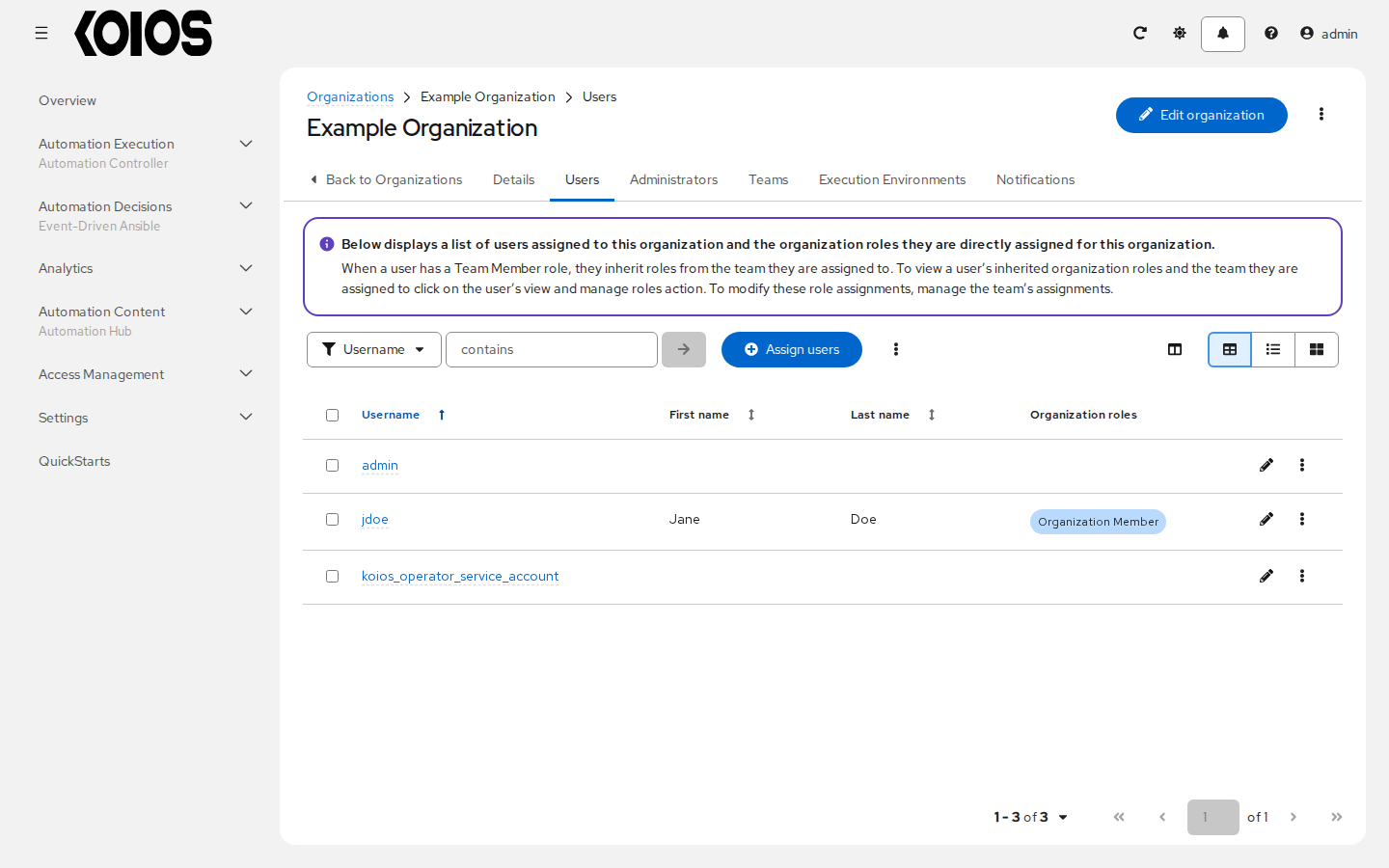
To add existing users, click Assign users in the Users tab, select the users and the roles to give them. Users and teams must exist first; see Create a User and Create a Team. To manage the roles of one user across the platform, open the user in Access Management > Users (see Users).
Note
Removing membership can remove access inherited through that membership. Direct user assignments and access through other teams are separate grants and must be reviewed independently. A user can belong to multiple organizations; membership is not a move of the user into a single ownership branch.
6.3. Work with Notifications
The Notifications tab lists the notifiers of automation controller that apply to the jobs of the organization, and lets you enable them for each event. For more detail, see Enable and Disable Notifications.
If no notifiers have been set up, create them in Automation Execution > Administration > Notifiers.
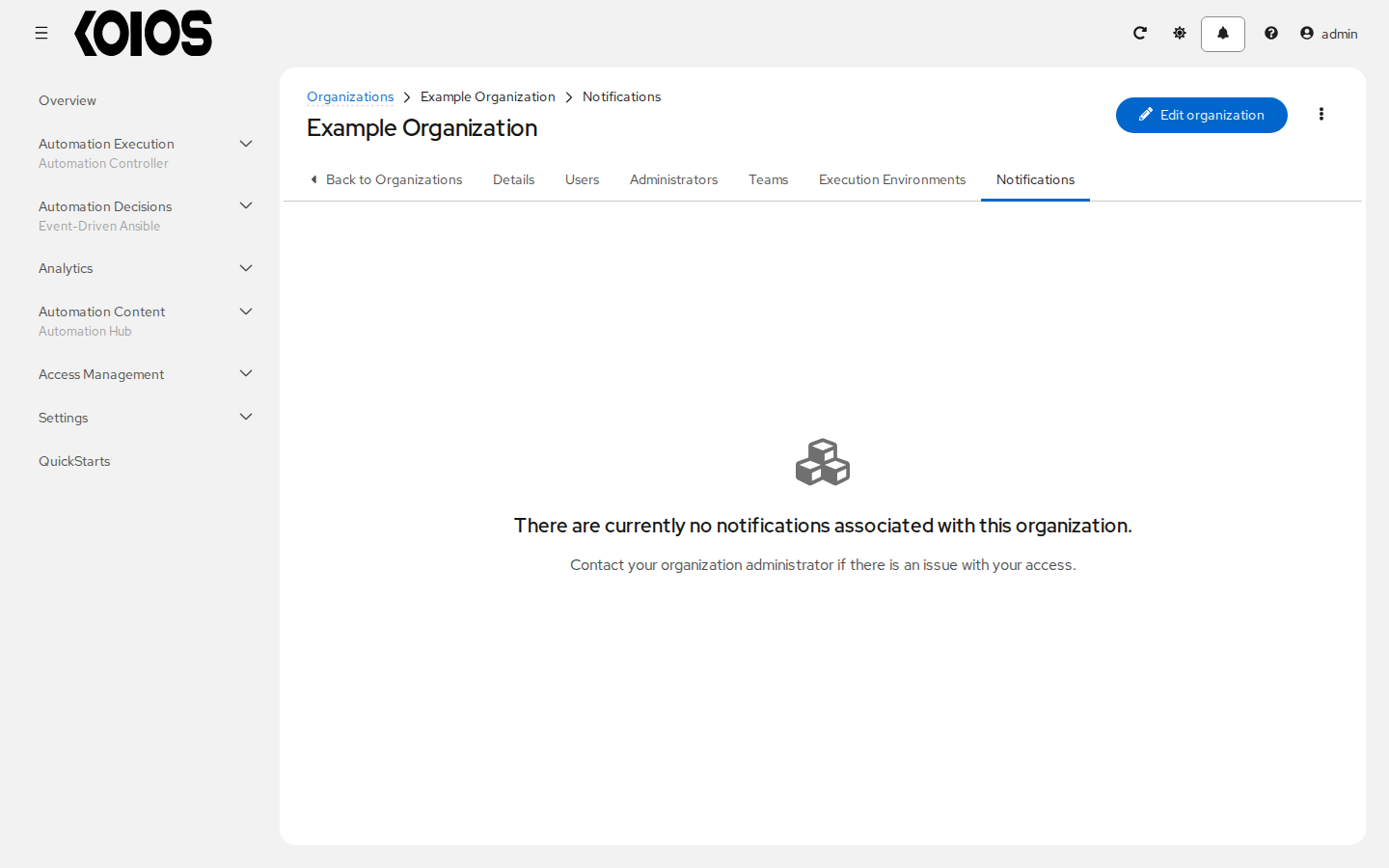
Refer to Notification Types for additional details on configuring various notification types.