
3. Examine the Overview
Open Overview from the navigation menu. Its controller panels include Resource counts, Job activity, Recent jobs, Recent projects and Recent inventories. The cards shown depend on enabled services and your saved view; a new platform may not have job history yet.
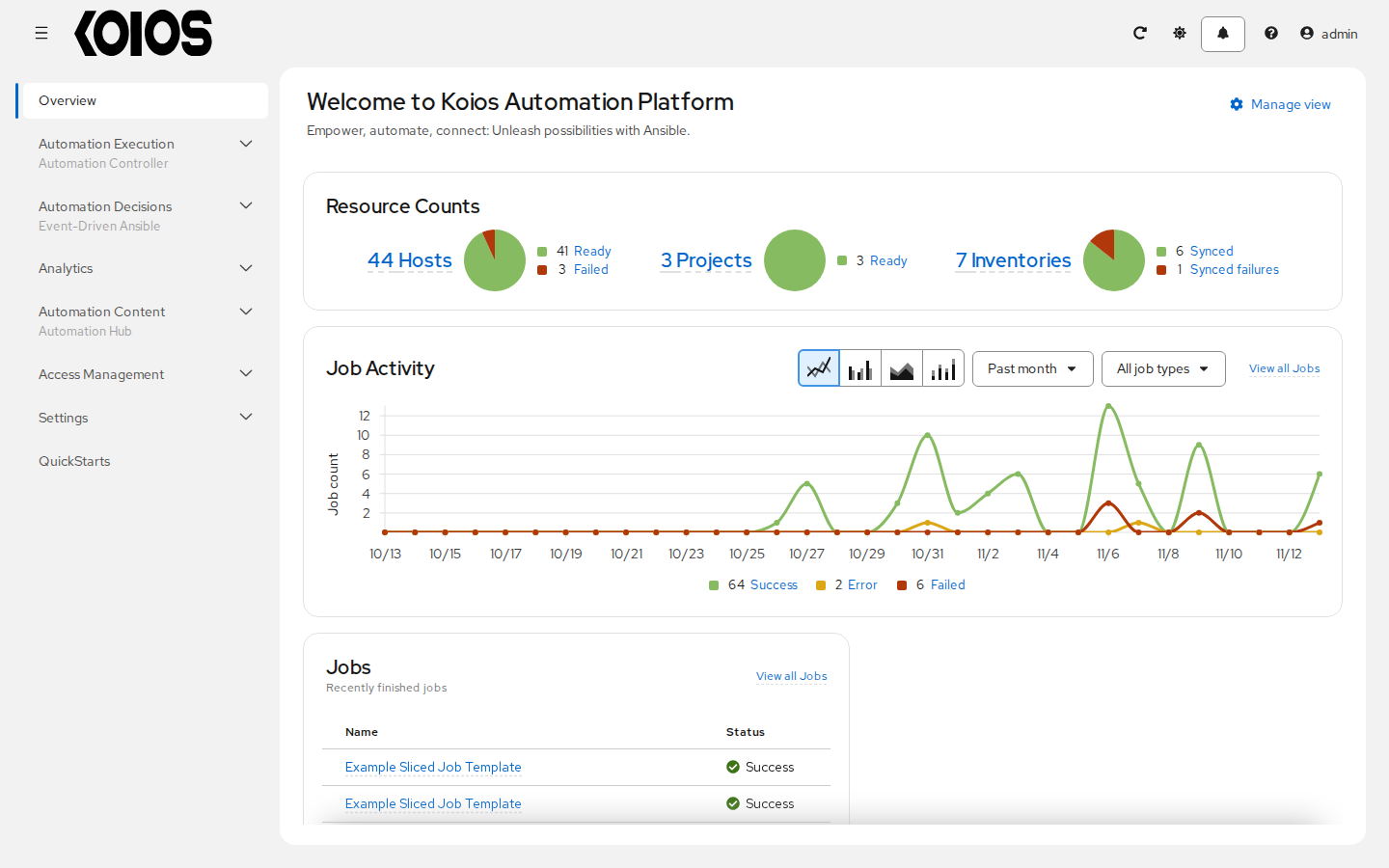
Click Manage view to choose and reorder the available panels. Event-driven automation panels can also appear when that service is enabled.
The navigation menu groups resources by service:
Automation Execution: controller jobs, templates, schedules and projects. Infrastructure contains inventories, hosts, instance groups, instances, execution environments and credentials.
Automation Decisions: event-driven automation.
Automation Content: automation hub.
Access Management: gateway organizations, teams, users, roles and authentication methods.
Settings: platform gateway settings, automation controller settings and User Preferences.
Available navigation and actions depend on your permissions and enabled services. The navigation toggle collapses or expands the menu. The header provides refresh, theme, notifications, Help and the user menu; some controls are hidden on smaller screens. Help > About displays platform information.
Continue with the initial demo objects described in Quick Start. They are controller preload data, not objects created by opening the Overview.