
11. Launch the Demo Job
After the project sync succeeds, open Automation Execution > Templates > Demo Job Template.
Click Launch template, or use the template’s rocket action in the Templates list.
With the initial configuration, the job launches without prompting for extra inputs and opens its Output. If someone has enabled launch prompts or a survey, complete the offered wizard first.
Wait for the job to finish and verify a Success status. While it runs, Follow keeps the latest output in view and Unfollow stops following it.
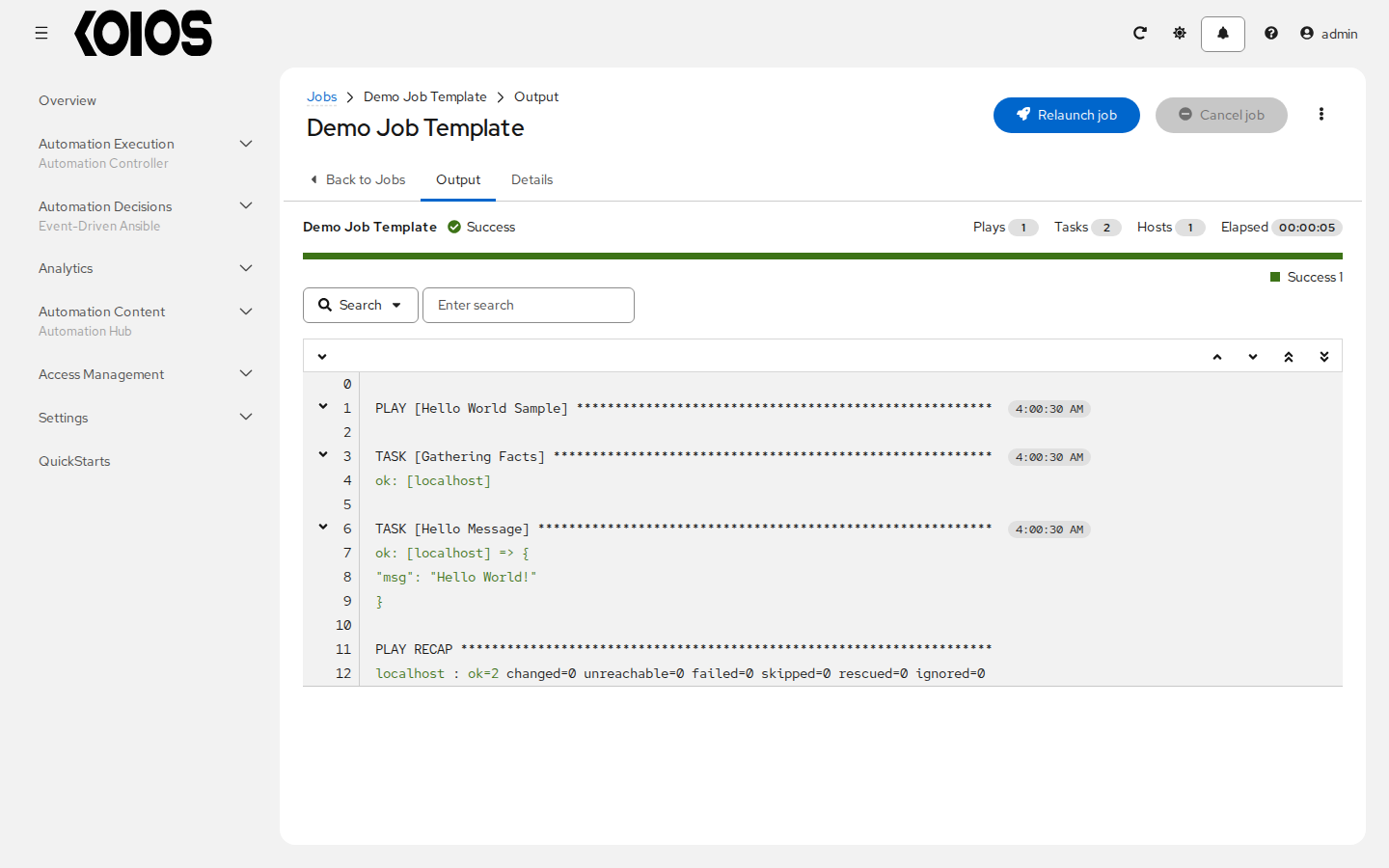
Open Details to review the inventory, project, execution environment and execution location actually used. You can return to the run from Automation Execution > Jobs or from the template’s Jobs tab.
If the job fails, inspect the failed event and job details. A project sync problem, an execution environment image-pull failure and a playbook failure require different fixes; see Troubleshooting Automation Controller. Do not replace the sample credential with a platform password to resolve a local demo failure.
A successful run confirms the demo’s local execution path. For results and your next automation tasks, see: